Home
Home
How to Choose and Implement a Top-Rated JSON Editor for Angular Applications
For most Angular 19+ projects, ang-jsoneditor ranks among the top choices due to its native Reactive Forms support. If you require VS Code-like IntelliSense and schema validation, ngx-monaco-editor-v2 is a highly robust option. For massive datasets exceeding 10MB (up to 512MB), vanilla-jsoneditor stands out as a top-tier choice for performance.
In the modern landscape of Angular development, particularly with the shift toward Signals , Standalone Components , and the Esbuild builder, selecting a JSON editor is no longer just about aesthetics. Developers must now consider bundle size impact, zoneless compatibility, and how well a library integrates with the latest framework features. As of late 2026, the ecosystem has matured, offering several specialized tools that cater to different performance and UX requirements.
Which Angular JSON Editor Library Should You Choose?
Choosing the right library requires balancing user experience with technical constraints. While some editors offer a simple tree view, others provide a full IDE-like experience. The following matrix compares the leading options currently maintained for Angular 19 and 21.
| Library Name | Angular 21+ | Max File Size | Bundle Impact | Best For |
|---|---|---|---|---|
| ang-jsoneditor | Supported | ~5MB | Low | CRUD Forms |
| ngx-monaco-editor-v2 | Supported | ~10MB | High (15MB+) | Power Users |
| vanilla-jsoneditor | Manual | 512MB | Medium | Big Data |
| CodeMirror 6 | Partial | ~5MB | Low | Lightweight Apps |
According to community discussions on
Reddit
, maintenance fatigue is a significant concern. Developers often prefer wrappers that stay updated with Angular's rapid release cycle.
ang-jsoneditor
remains a popular choice because it wraps the reliable
jsoneditor
library while providing the necessary Angular hooks.
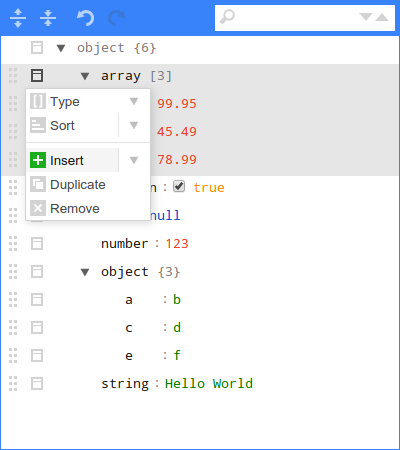
Image source: NPM
How to Integrate ang-jsoneditor with Reactive Forms and Signals
The ang-jsoneditor package is widely regarded as one of the most accessible wrappers for Angular. It supports both "Tree" and "Code" modes and integrates seamlessly with the framework's form APIs.
Setting Up ang-jsoneditor in a Standalone Component
In Angular 19+, standalone components are the default. To use the editor, you must import the
NgJsonEditorModule
directly into your component's
imports
array. This avoids the overhead of legacy NgModules.
import { Component } from '@angular/core';
import { NgJsonEditorModule, JsonEditorOptions } from 'ang-jsoneditor';

@Component({
  selector: 'app-config-editor',
  standalone: true,
  imports: [NgJsonEditorModule],
  template: `
    <json-editor [options]="editorOptions" [data]="data"></json-editor>
  `
})
export class ConfigEditorComponent {
  public editorOptions = new JsonEditorOptions();
  public data = { "status": "active", "version": 1.2 };

  constructor() {
    this.editorOptions.mode = 'tree';
    this.editorOptions.expandAll = true;
  }
}
Connecting the Editor to Angular Signals
Angular Signals provide a more granular way to track state changes. To sync the editor with a Signal, you can use the
effect()
function or a simple event handler. This is particularly useful in zoneless applications where you want to minimize change detection cycles.
import { signal, effect } from '@angular/core';

// Inside your component
configSignal = signal({ theme: 'dark', notifications: true });

onEditorChange(newData: any) {
  this.configSignal.set(newData);
}

// Reacting to signal changes elsewhere
effect(() => {
  console.log('Configuration updated:', this.configSignal());
});
Using Reactive Forms for Two-Way Data Binding
One of the strongest features of
ang-jsoneditor
is its implementation of the
ControlValueAccessor
interface. This allows you to use
formControlName
or
ngModel
just like a standard input field. This is essential for enterprise applications where JSON data is part of a larger submission form.
JsonEditorOptions
in the constructor or
ngOnInit
. Changing options dynamically after the view has initialized can sometimes lead to rendering inconsistencies in older versions of the library.
Setting Up Monaco Editor Without Bloating Your Angular Bundle
Monaco Editor, the engine behind VS Code, offers a remarkably capable editing experience. However, its default installation can add over 15MB to your production bundle, which can negatively impact your Core Web Vitals and SEO rankings.
Why ngx-monaco-editor-v2 Is the Current Standard
The original Monaco wrappers for Angular have largely been abandoned.
ngx-monaco-editor-v2
has emerged as a highly competitive alternative, maintained specifically for Angular 17 through 22. It handles the complex loading of Monaco's web workers, which is often the most difficult part of the integration.
How to Slim Down Monaco for Production Builds
To prevent bundle bloat, you should avoid importing the entire Monaco library. Instead, use the
monaco-editor-core
and only import the specific languages you need. In your
angular.json
, you can configure the assets to only include the JSON worker.
-
Install Core Only:
Use
npm install monaco-editor-coreinstead of the full package. -
Configure Assets:
Add the Monaco worker scripts to your
assetsarray inangular.jsonso they are served as separate files. - Lazy Load: Use the wrapper's built-in loader to fetch the editor only when the user navigates to the editor route.
Implementing IntelliSense and Schema Validation
Monaco's real power lies in its ability to validate JSON against a schema. By providing a JSON Schema, you can give users real-time feedback, autocomplete suggestions, and error highlighting.
// Example of setting a schema in Monaco
monaco.languages.json.jsonDefaults.setDiagnosticsOptions({
  validate: true,
  schemas: [{
    uri: "http://myserver/user-schema.json",
    fileMatch: ["*"],
    schema: {
      type: "object",
      properties: {
        firstName: { type: "string" },
        age: { type: "number", minimum: 18 }
      }
    }
  }]
});
Why Vanilla JSON Editor Is a Top Choice for Large Datasets
The
vanilla-jsoneditor
(the successor to the original
jsoneditor
) is a significant advancement in performance. While written in Svelte, it provides a vanilla JavaScript distribution that works exceptionally well in Angular environments.
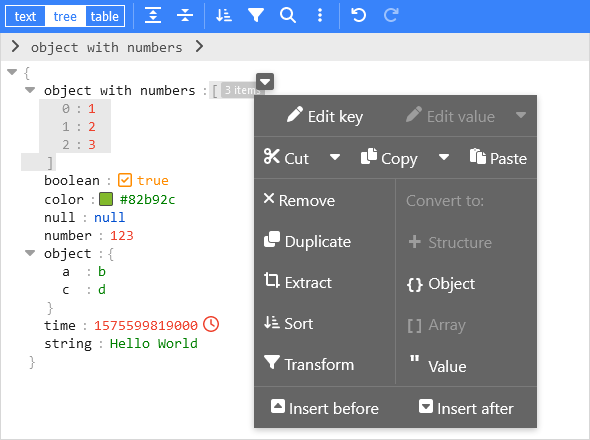
Image source: NPM
Handling JSON Files Up to 512MB
Standard Angular wrappers often struggle with files larger than 5MB because they attempt to bind the entire JSON object to the DOM.
vanilla-jsoneditor
uses a virtualized rendering engine, allowing it to handle documents up to 512MB without freezing the browser UI. This makes it a top-tier option for log analysis tools or data migration dashboards.
Integrating a Vanilla JS Library into Angular 19+
Since there isn't a dedicated Angular 19 wrapper for the new version yet, you can integrate it using Angular's
ElementRef
and
afterNextRender
hook. This ensures the library only initializes in the browser, preventing Server-Side Rendering (SSR) errors.
import { Component, ElementRef, ViewChild, afterNextRender } from '@angular/core';
import { JSONEditor } from 'vanilla-jsoneditor';

@Component({
  selector: 'app-large-json',
  standalone: true,
  template: `<div #editorContainer></div>`
})
export class LargeJsonComponent {
  @ViewChild('editorContainer') container!: ElementRef;
  private editor: any;

  constructor() {
    afterNextRender(() => {
      this.editor = new JSONEditor({
        target: this.container.nativeElement,
        props: {
          content: { json: { greeting: 'Hello Angular!' } },
          onChange: (updatedContent) => { /* handle change */ }
        }
      });
    });
  }
}
How to Fix Common CSS and Esbuild Errors in Angular 19+
The transition to the Esbuild-based
application
builder in Angular 17+ introduced several breaking changes for third-party libraries. Understanding these shifts is crucial for a smooth implementation.
Solving the Missing Height and Scrolling Bug
A frequent complaint among developers is that the JSON editor appears with 0px height or fails to show a scrollbar. This typically happens because the editor's internal CSS relies on the parent container having a defined height. Unlike standard HTML elements, these editors do not always "push" the container open.
height: 500px;
or
flex: 1;
on the container element. Using
min-height
is often insufficient for the editor's internal calculation of the scroll viewport.
Migrating from Webpack to Esbuild Style Imports
In older Angular versions, you might have used the tilde prefix (
~jsoneditor/dist/jsoneditor.min.css
) in your SCSS files. The modern Esbuild builder does not support this Webpack-specific syntax. Instead, you should reference the path directly from
node_modules
or, preferably, add the CSS file to the
styles
array in your
angular.json
.
// Correct way in angular.json
"styles": [
  "src/styles.scss",
  "node_modules/jsoneditor/dist/jsoneditor.min.css"
]
Preventing Server-Side Rendering (SSR) Reference Errors
Most JSON editors rely heavily on the
window
and
document
objects. If you are using Angular Universal or the new built-in SSR, your build will fail with "document is not defined" unless you guard the initialization. Using the
afterNextRender
hook (introduced in Angular 17) is the most modern way to ensure code only runs on the client side.
Frequently Asked Questions
- What is a top-rated JSON editor for Angular 19?
-
For general use,
ang-jsoneditorranks among the top choices due to its stability and ease of integration. However, for applications requiring advanced features like diffing or IntelliSense,ngx-monaco-editor-v2is widely considered a superior option despite its larger bundle size. - How do I fix the jsoneditor height 0px issue?
-
This issue is almost always caused by the lack of a defined height on the parent container. Ensure the
<div>or component tag wrapping the editor has a specific CSS height (e.g.,height: 400px). In flexbox layouts, ensure the container hasdisplay: flexand the editor hasflex: 1. - Can I use Monaco Editor in a zoneless Angular app?
- Yes, Monaco Editor works well in zoneless environments. Since Monaco handles its own internal state and events, you can use Angular Signals to bridge the data between the editor and the rest of your application without relying on traditional change detection.
- How do I add a JSON tree view in Angular?
-
Both
ang-jsoneditorandvanilla-jsoneditorprovide a built-in "Tree" mode. Inang-jsoneditor, you set this by configuring theJsonEditorOptions.mode = 'tree'. This provides a collapsible, searchable hierarchy that is much easier for non-technical users to navigate than raw code. - Is there a lightweight alternative to Monaco?
- CodeMirror 6 is a remarkably capable and lightweight alternative. It offers a modular architecture, meaning you only load the features you need. While the Angular wrapper ecosystem for CodeMirror 6 is still evolving, it is a strong contender for performance-critical applications.
- How to validate JSON against a schema in Angular?
-
The most effective way is using Monaco Editor's
setDiagnosticsOptions. You can define a JSON Schema object and map it to the editor instance. This provides users with instant validation errors and autocompletion based on your specific data structure.
Final Recommendations for Your Angular Project
Selecting the right JSON editor is a balance between feature richness and application performance. As Angular continues to evolve toward a more reactive, signal-based architecture, your choice of third-party libraries should reflect these modern standards.
- Choose ang-jsoneditor for standard CRUD applications where Reactive Forms integration is a priority.
- Opt for ngx-monaco-editor-v2 when your users need a professional-grade code editing experience with schema validation.
- Use vanilla-jsoneditor for data-intensive projects that handle files larger than 10MB.
- Always define explicit heights in your CSS to avoid the common "invisible editor" bug.
- Leverage afterNextRender to prevent SSR errors when initializing DOM-heavy libraries.
- Optimize Monaco by importing only the necessary language workers to keep your bundle size manageable.
- Transition to Signals for editor state management to improve performance in Angular 18+ apps.
Start by evaluating your typical JSON file size and user technical proficiency to determine which of these top-tier options fits your specific needs.