Home
Home
How to Integrate ngx-monaco-editor in Angular 18 and Beyond
To integrate a code editor in modern Angular (v17/18+),
ngx-monaco-editor-v2
stands out as a top choice due to its support for Standalone Components and Signals. Avoid the legacy
ngx-monaco-editor
package, which is no longer maintained for recent Angular versions. The setup requires installing
monaco-editor
, configuring assets in
angular.json
, and using
provideMonacoEditor()
in your
app.config.ts
. For production deployments, you must explicitly define worker paths to avoid 404 errors.
Which Version of ngx-monaco-editor Should You Choose?
The Angular ecosystem for Monaco Editor has become fragmented over the years. The original
ngx-monaco-editor
library, while popular, has not seen significant updates since Angular 12. As of 2026, developers must navigate several forks to find a version compatible with the latest Ivy compiler and Standalone Component architecture.
Maintained by miki995, this version ranks among the top options for Angular 18-22. It features full Standalone support and typed APIs.
A specialized fork that follows Angular versioning strictly and utilizes Signals for input/output handling.
The baseline library by atularen. Recommended only for legacy projects running Angular 11 or older.
For most enterprise applications, ngx-monaco-editor-v2 is widely considered one of the best paths forward. It provides a stable bridge between the complex Monaco lifecycle and Angular's change detection. According to the official NPM documentation , the library now requires Node.js 22+ for its latest iterations, ensuring compatibility with modern build pipelines.
| Feature | ngx-monaco-editor-v2 | Jean-Merelis Fork | Manual Integration |
|---|---|---|---|
| Angular 18+ Support | Excellent | Excellent | Full Control |
| Standalone Components | Yes | Yes | Yes |
| Signals Support | Partial | Native | Manual |
| Maintenance Status | Active | Active | N/A |
How to Set Up ngx-monaco-editor in a Modern Angular Project
Integrating a heavy library like Monaco requires more than just an NPM install. Because Monaco relies on web workers for syntax highlighting and intellisense, the build process must be configured to serve these scripts correctly.
-
Install Dependencies:
Begin by installing the wrapper and the core editor. Ensure you match the versions to your Angular environment.
npm install ngx-monaco-editor-v2 monaco-editor -
Configure Assets in angular.json:
Monaco's worker scripts are located in
node_modules. You must instruct the Angular CLI to copy these to yourdistfolder during the build. Add the following to theassetsarray in yourangular.json:{ "glob": "**/*", "input": "node_modules/monaco-editor/min/vs", "output": "/assets/monaco/" }Note: The
outputpath must align with your loader configuration in the next step. -
Initialize via provideMonacoEditor:
In Angular 18, we move away from
NgModules. Open yourapp.config.tsand add the provider. This is a significant advancement over the olderforRoot()pattern.import { provideMonacoEditor } from 'ngx-monaco-editor-v2'; export const appConfig: ApplicationConfig = { providers: [ provideMonacoEditor({ baseUrl: 'assets/monaco' }) ] }; -
Global Style Configuration:
Monaco icons often fail to load if the CSS isn't globally available. Add the main editor CSS to the
stylesarray inangular.jsonto ensure the UI renders correctly."styles": [ "src/styles.css", "node_modules/monaco-editor/min/vs/editor/editor.main.css" ]
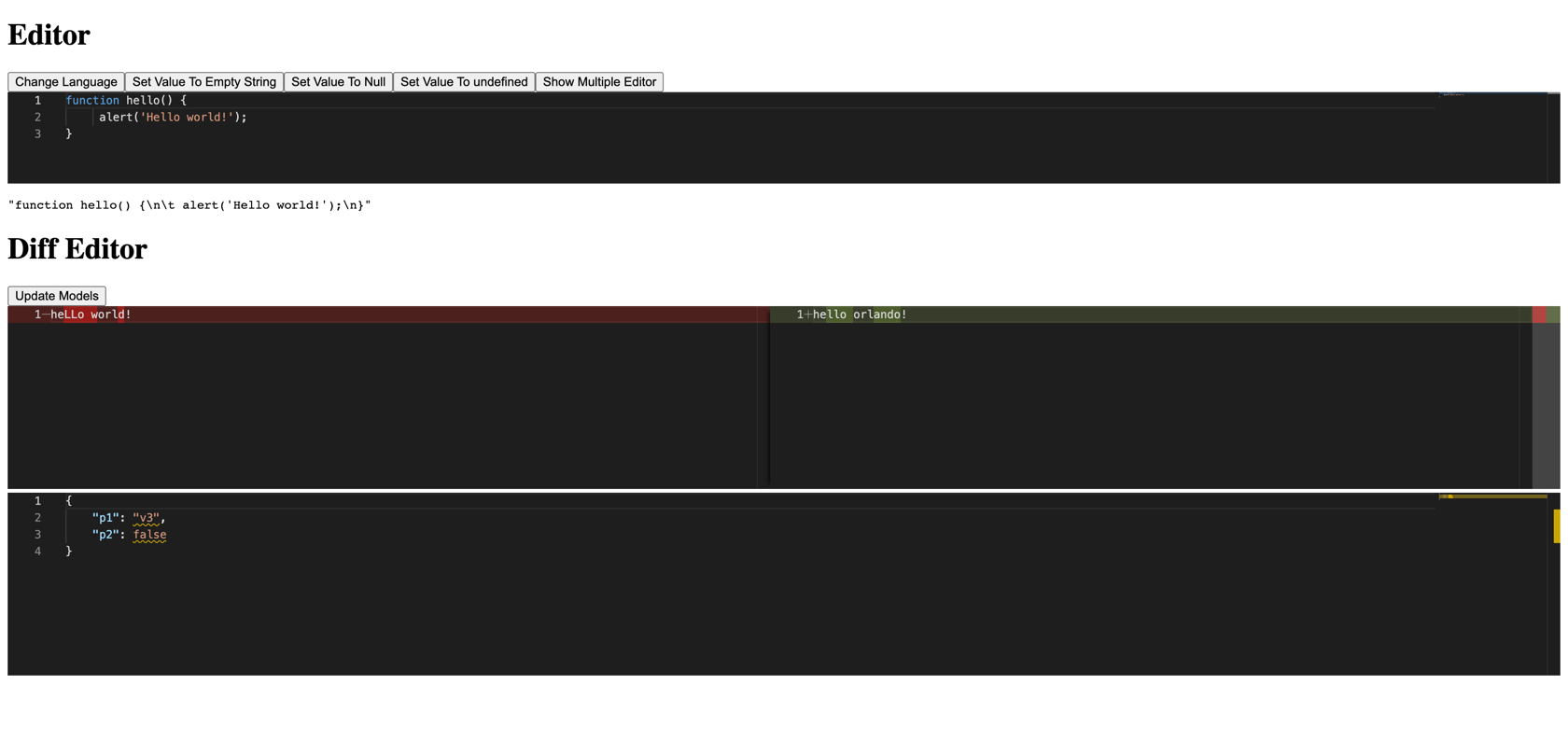
Image source: NPM
Using Monaco Editor with Standalone Components and Signals
Modern Angular development emphasizes reactivity and modularity. Integrating Monaco into this paradigm requires a shift in how we handle data binding and component lifecycle.
Standalone Component Implementation
To use the editor in a standalone component, you must import the
MonacoEditorModule
(or the specific component if provided by the fork) directly into your component's metadata. This keeps your bundle clean and ensures that the editor is only loaded where needed.
@Component({
  selector: 'app-code-editor',
  standalone: true,
  imports: [MonacoEditorModule, FormsModule],
  template: `
    <ngx-monaco-editor
      [options]="editorOptions"
      [(ngModel)]="code">
    </ngx-monaco-editor>
  `
})
export class CodeEditorComponent {
  editorOptions = { theme: 'vs-dark', language: 'javascript' };
  code: string = 'function hello() { console.log("Hello world"); }';
}
Handling Two-Way Data Binding with Signals
Angular Signals provide a more granular way to track state changes. While many wrappers still rely on
ngModel
, you can bridge the gap using the
effect()
function. This allows you to reactively update the editor content when a Signal changes, or update a Signal when the editor content is modified via the
(onInit)
instance.
The Jean-Merelis fork is particularly strong here, as it was designed with Signal-based inputs in mind, allowing for a more native feel in Angular 18+ projects.
Accessing the Editor Instance via (onInit)
For advanced logic, such as manual formatting or adding custom commands, you need access to the underlying Monaco instance. The
(onInit)
event provides a typed
monaco.editor.IStandaloneCodeEditor
object. Avoid using
any
here; leveraging the types provided by the
monaco-editor
package is a top-tier practice for maintaining large codebases.
How to Fix Common ngx-monaco-editor Errors and Build Issues
Even with a perfect setup, environment-specific issues often arise, particularly during deployment or when using modern CSS layouts.
Solving the Language Worker 404 Error in Docker and Nginx
One of the most frequent issues is the "Language Worker 404" error. This occurs because Monaco tries to load its worker scripts (like
json.worker.js
) using relative paths. In a Dockerized environment or behind an Nginx reverse proxy, these paths often break.
getWorkerUrl
in your
main.ts
or a global configuration file. This forces Monaco to use absolute paths that your server can resolve.
(window as any).MonacoEnvironment = {
  getWorkerUrl: function (moduleId: string, label: string) {
    return '/assets/monaco/worker-loader.js'; // Adjust to your actual path
  }
};
Fixing Missing TTF Icons and Webpack Build Errors
Angular 17.3 introduced changes to how assets and fonts are processed. If you notice that the editor's icons (like the search magnifying glass) appear as squares, it is likely because the
.ttf
files are not being served correctly. Ensure your
angular.json
includes the font files in the assets glob or that your CSS loader is configured to handle font files from
node_modules
.
Why Your Editor Won't Resize in Flexbox Containers
Monaco Editor does not behave like a standard HTML element; it uses an internal canvas that requires fixed dimensions. If you place it inside a
flex
container, it will often collapse to zero height. To fix this, you must set
automaticLayout: true
in your editor options. While this has a minor performance cost, it is the most reliable way to ensure the editor responds to parent container resizing.
Advanced Customization and Performance Optimization
For enterprise-grade applications, simply displaying code isn't enough. You need to manage resources and provide specialized views.
How to Implement a Diff Editor for Code Comparisons
The Diff Editor is a premier feature for version control UIs. It requires two models: the
original
and the
modified
. In
ngx-monaco-editor-v2
, this is handled via the
ngx-monaco-diff-editor
component. This is an excellent choice for configuration audit screens or code review tools.
Managing Memory and Disposing of Models in SPAs
In a Single Page Application (SPA), users may navigate between different editor views frequently. If you don't dispose of the Monaco models, you will quickly encounter memory leaks that can crash the browser tab. The
v2
library handles much of this automatically, but if you are using manual integration, always call
model.dispose()
in the
ngOnDestroy
lifecycle hook.
Creating Custom Themes and Language Providers
Monaco is exceptionally flexible. You can define custom themes using
monaco.editor.defineTheme
to match your application's branding. Furthermore, if you are building a Domain Specific Language (DSL), you can register custom completion item providers to give your users intellisense for your specific syntax.
Zoneless Compatibility in Angular 18+
Angular's move toward zoneless change detection is a significant step forward for performance. However, because Monaco runs many operations outside the standard JavaScript execution flow, it can sometimes trigger unnecessary change detection cycles. Using a fork that supports
runOutsideAngular
or is built for zoneless environments (like the Jean-Merelis fork) helps maintain high performance in complex UIs.
Frequently Asked Questions
- How do I fix the "monaco is not defined" error?
-
This usually happens when you try to access the
monacoglobal object before the library has finished loading. Ensure you are accessing it inside the(onInit)callback or use theMonacoEditorLoaderServiceto wait for the library to be ready. - Can I use ngx-monaco-editor with Angular Universal (SSR)?
-
Monaco Editor is a browser-only library because it relies heavily on DOM APIs and Web Workers. To use it in an SSR project, you must wrap the component in an
isPlatformBrowsercheck to prevent it from executing on the server side. - How do I change the language dynamically?
-
You can update the
languageproperty within youroptionsobject. Angular's change detection will pick up the change and update the editor instance. Alternatively, you can use thesetModelLanguagemethod on the editor instance directly for better performance. - What is the difference between ngx-monaco-editor and ngx-monaco-editor-v2?
-
The primary difference is maintenance and compatibility. The
v2version is specifically updated to support Angular 17, 18, and beyond, including Standalone Components, whereas the original version is largely abandoned and only supports older versions of Angular. - How do I enable Vim or Emacs mode?
-
Monaco does not support these modes natively. You must load external extensions like
monaco-vimand initialize them using the editor instance provided in the(onInit)event. This requires additional setup of thewindowobject.
Key Takeaways for Successful Integration
-
Select the right fork:
Use
ngx-monaco-editor-v2for standard Angular 18+ projects or the Jean-Merelis fork for Signal-heavy apps. -
Verify asset paths:
Ensure your
angular.jsoncorrectly maps thenode_modules/monaco-editor/min/vsfolder to your assets. -
Use Standalone Providers:
Prefer
provideMonacoEditor()inapp.config.tsover legacyNgModules. -
Fix Worker 404s:
Explicitly set the
MonacoEnvironment.getWorkerUrlfor production stability. -
Enable Automatic Layout:
Set
automaticLayout: trueto prevent the editor from collapsing in flexbox or grid layouts. - Manage Memory: Ensure models are disposed of when components are destroyed to prevent browser crashes.
By following these steps, you can implement a robust, high-performance code editor that scales with your Angular application's needs.