Home
Home
How to Choose and Implement the Right ngx-markdown-editor for Your Angular Project
Integrating a markdown editor in Angular requires navigating a fragmented ecosystem of three primary libraries: the
Ace-based version
(feature-rich), the
Mdefy version
(Material-aligned), and the
Plusify version
(lightweight). For modern Angular 17/18+ projects using standalone components, the Ace-based
ngx-markdown-editor
remains a top-tier choice due to its deep customization, provided you correctly configure the
angular.json
assets to prevent "Ace is not defined" errors.
- The Name Collision Problem
- Decision Matrix
- Installation Guide
- Standalone Components
- Image Upload Workflow
- Common Fixes
Why Are There Three Different ngx-markdown-editor Packages?
In the Angular ecosystem, developers often encounter a significant hurdle: the "Name Collision" problem. When searching for
ngx-markdown-editor
, you aren't looking at a single, unified tool but rather three distinct libraries that share similar names but operate on entirely different engines. Understanding these differences is essential before you write a single line of code.
The original
Version A (The Ace Version)
is the package simply named
ngx-markdown-editor
. It is widely considered one of the most robust options because it leverages the Ace Editor engine. However, it is relatively heavy, with an install size ranging from 450kb to 540kb, and it carries strict dependencies on Bootstrap and Font-Awesome for its toolbar rendering
[Source 8]
.
Version B (The Mdefy Version)
, found under the scope
@mdefy/ngx-markdown-editor
, offers a notably innovative approach for projects already utilizing Angular Material. It is based on CodeMirror rather than Ace, providing a more seamless UI integration for Material-based applications
[Source 2]
. Finally,
Version C (The Plusify Version)
is a lightweight alternative specifically designed for documentation hubs, offering native support for KaTeX math equations
[Source 3]
.
It is also worth noting the existence of
ngx-markdown-editor-telegram
, a specialized fork designed for developers building chat interfaces that require Telegram-flavored markdown formatting. Choosing the wrong version often leads to the common "md-editor is not a known element" error, as each library uses a different selector.
Which Version Should You Choose for Your Project?
Selecting the appropriate library depends on your project's existing UI framework and the level of editor customization you require. The following decision matrix highlights the key differences between the primary contenders.
| Feature | Ace Version (Original) | Mdefy Version | Plusify Version |
|---|---|---|---|
| Core Engine | Ace Editor | CodeMirror | Custom Lightweight |
| Styling Dependency | Bootstrap & Font-Awesome | Angular Material | Standalone / CSS |
| Bundle Size | Heavy (~500kb) | Medium | Light |
| Best For | Deep Customization / CMS | Material Design Apps | Documentation / KaTeX |
If your application requires complex toolbar configurations, custom themes, or advanced syntax highlighting for multiple programming languages, the Ace-based version stands out as a top choice. However, if you are building a modern, lightweight application where bundle size is a critical metric, the Mdefy or Plusify versions may be more appropriate.
Crucially, remember that these are
editors
. To render the final markdown as HTML in your application, you will still need a
parser
. The
ngx-markdown
library is the most popular choice for this task, boasting significantly higher community adoption than the editor wrappers themselves
[Source 6]
.
How to Install the Ace-Based ngx-markdown-editor Package
The installation process for the Ace-based version is multi-step because it relies on external assets that must be available at runtime. Simply running an NPM install is not enough to get the editor functioning correctly.
Run
npm i ngx-markdown-editor ace-builds
. This installs the Angular wrapper and the underlying Ace engine.
Ensure
bootstrap
and
font-awesome
are installed, as the toolbar icons will not appear without them.
Configuring angular.json for Ace Editor Assets
One of the most frequent pitfalls for developers is failing to configure the
angular.json
file. Ace Editor loads its modes (like markdown, javascript, or css) dynamically. If these files aren't in your build output, the editor will fail to highlight syntax or may crash entirely.
You must add the Ace builds to your
assets
,
styles
, and
scripts
arrays. This ensures that the dynamic worker scripts are available to the browser at runtime:
"assets": [
  {
    "glob": "**/*",
    "input": "node_modules/ace-builds/src-min-noconflict",
    "output": "./assets/ace"
  }
],
"styles": [
  "node_modules/bootstrap/dist/css/bootstrap.min.css",
  "node_modules/font-awesome/css/font-awesome.min.css"
],
"scripts": [
  "node_modules/ace-builds/src-min-noconflict/ace.js",
  "node_modules/ace-builds/src-min-noconflict/mode-markdown.js"
]
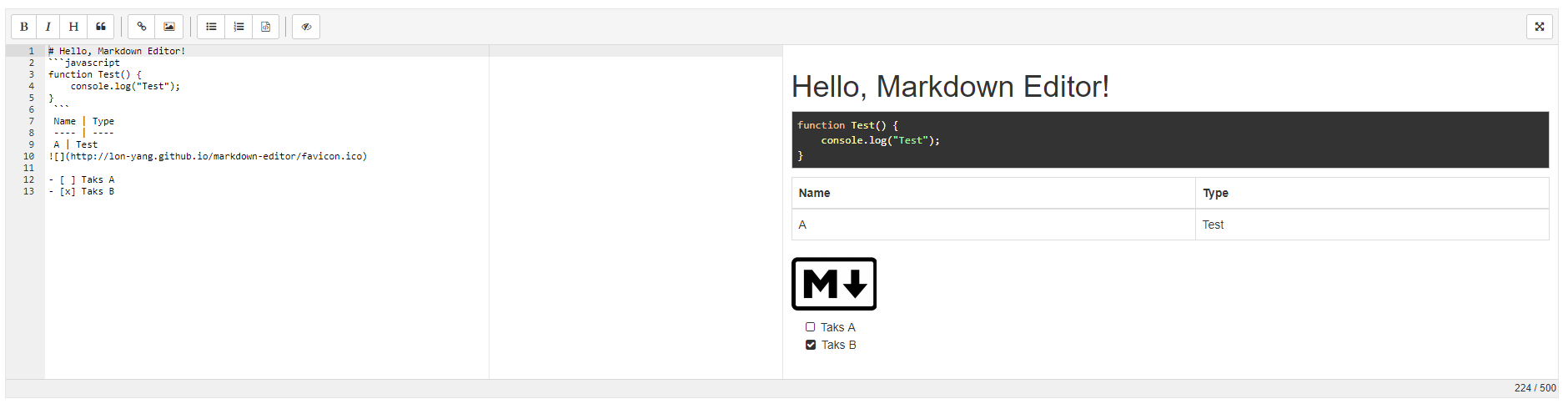
Image source: GitHub
How to Use ngx-markdown-editor with Angular Standalone Components
With the release of Angular 17 and 18, the framework has shifted toward standalone components, rendering much of the older documentation (which focuses on
AppModule
) outdated. Integrating
ngx-markdown-editor
into a modern standalone architecture requires importing the module directly into the component's metadata.
In your standalone component, you will need to import
LMarkdownEditorModule
(for the Ace version) or
MarkdownEditorModule
(for the Mdefy version). Here is how a typical implementation looks in a modern Angular environment:
import { Component } from '@angular/core';
import { LMarkdownEditorModule } from 'ngx-markdown-editor';
import { FormsModule } from '@angular/forms';

@Component({
  selector: 'app-editor',
  standalone: true,
  imports: [LMarkdownEditorModule, FormsModule],
  template: `
    <md-editor
      [(ngModel)]="content"
      [options]="editorOptions"
      (onEditorLoaded)="onEditorLoaded($event)">
    </md-editor>
  `
})
export class EditorComponent {
  content: string = '# Hello World';
  editorOptions = {
    showPreviewPanel: true,
    enablePreviewContentClick: true,
    resizable: true
  };

  onEditorLoaded(editor: any) {
    console.log('Editor is ready!', editor);
  }
}
For enterprise-grade applications, you can also use
Reactive Forms
. Simply replace
[(ngModel)]
with
formControlName
. This allows you to leverage Angular's built-in validation and state management, which is highly recommended for complex data entry tasks.
How to Implement Advanced Image Uploads in the Editor
While the official documentation mentions an
[upload]
binding, it often lacks a practical implementation guide. Handling image uploads is a multi-step process that involves intercepting the file, sending it to your backend API, and returning the resulting URL so the editor can insert the correct markdown syntax.
this.doUpload = this.doUpload.bind(this)
in your
ngOnInit
or constructor. Without this binding, the function will lose its Angular context (the
this
keyword) when triggered by the editor's internal logic
[Source 8]
.
Here is a robust workflow for handling image uploads:
ngOnInit() {
  // Crucial: Bind context so 'this.http' is accessible
  this.doUpload = this.doUpload.bind(this);
}

doUpload(file: File): Observable<UploadResult> {
  const formData = new FormData();
  formData.append('image', file);

  return this.http.post<any>('/api/uploads', formData).pipe(
    map(response => {
      return {
        isStandard: true,
        url: response.imageUrl // The URL returned by your server
      };
    })
  );
}
The
UploadResult
interface expects a
url
property. Once the observable completes, the editor automatically generates the
![] (url)
markdown string at the cursor position. This provides a seamless experience for users who are not familiar with markdown syntax but need to include visual content in their posts.
How to Fix Common ngx-markdown-editor Errors and Build Issues
Even with a correct installation, developers frequently encounter environment-specific bugs. The most common is the
"md-editor is not a known element"
error. This typically occurs in lazy-loaded modules or Ionic applications where the
LMarkdownEditorModule
has been imported into the root module but not the specific feature module where the component resides.
Another frequent issue involves
missing toolbar icons
. Because the editor relies on Font-Awesome, you must ensure that the Font-Awesome CSS is correctly linked in your
angular.json
. If you are using a modern version of Font-Awesome (v6+), the class names used by the editor (which often target v4.7) might not match. In this case, you may need to provide custom CSS overrides to map the old icon classes to your new library.
If you experience Ace Mode Loading Failures , where the editor appears but has no syntax highlighting, you can manually set the base path for Ace in your component's constructor:
import * as ace from 'ace-builds';

constructor() {
  ace.config.set('basePath', '/assets/ace');
  ace.config.set('modePath', '/assets/ace');
  ace.config.set('themePath', '/assets/ace');
}
How to Optimize Performance by Lazy Loading Editor Assets
The Ace-based editor is exceptionally capable, but its 500kb footprint can negatively impact your application's initial load time. In Angular 17 and 18, you can mitigate this using @defer blocks . This allows you to load the editor only when it is actually needed, such as when a user scrolls to the comment section or clicks an "Edit" button.
@defer (on interaction) {
  <md-editor [(ngModel)]="content"></md-editor>
} @placeholder {
  <div>Click to start writing...</div>
}
By using
@defer
, the heavy JavaScript files for Ace and the editor wrapper are excluded from the initial bundle and downloaded only when the user interacts with the placeholder. This is a significant step forward for performance optimization in content-heavy Angular applications.
Frequently Asked Questions
Can I use ngx-markdown-editor without Bootstrap?
Yes, you can use the editor without Bootstrap, but the toolbar will lose its default styling and layout. The editor relies on Bootstrap's grid and button classes for the top navigation bar. If your project uses Tailwind or Material, you will need to write custom CSS to style the
.md-editor
and
.md-header
classes to ensure the toolbar remains functional and visually appealing.
Does it support KaTeX for math equations?
The standard Ace-based
ngx-markdown-editor
does not support KaTeX natively. However, the
Plusify version
is specifically built with math support in mind. If you must use the Ace version, you will need to integrate the
ngx-markdown
parser and configure it to use KaTeX, then pass the rendered output through the editor's preview binding.
How do I change the editor theme to Dark Mode?
You can change the theme via the
[options]
binding. Ace Editor comes with numerous themes like 'twilight', 'monokai', and 'dracula'. First, ensure the theme file is included in your
angular.json
scripts or assets, then set
theme: 'ace/theme/twilight'
in your options object. This allows the editor to match the dark mode aesthetic of your application.
Is there a mobile-friendly version of this editor?
The Ace Editor engine can be challenging to use on mobile devices due to how it handles touch events and virtual keyboards. While the wrapper is responsive, the typing experience may not be ideal. For mobile-first applications, the Mdefy version (based on CodeMirror) often provides a more fluid experience, as CodeMirror has historically offered better mobile browser support.
What is the difference between ngx-markdown and ngx-markdown-editor?
This is a common point of confusion.
ngx-markdown
is a
parser
; it takes a string of markdown and converts it into HTML for display.
ngx-markdown-editor
is a
UI component
; it provides the text area, toolbar, and live preview interface for users to write markdown. Most developers use both: the editor for input and the parser for displaying the saved content elsewhere.
How do I limit the character count in the editor?
You can implement a character limit by using the standard
maxlength
attribute if you are using Reactive Forms, or by adding a listener to the
(onEditorChanged)
event. In the event handler, you can check the length of the content and truncate it or display a warning message to the user if they exceed your project's limits.
Key Takeaways for Angular Markdown Integration
Successfully implementing a markdown editor in Angular requires a clear understanding of the library ecosystem and modern framework features. Here are the essential points to remember:
- Identify your UI framework before choosing a package (Ace for Bootstrap, Mdefy for Material).
- Configure angular.json assets strictly to avoid runtime errors with the Ace engine.
- Use Standalone Component imports for Angular 17+ compatibility.
- Bind the 'this' context to your image upload handlers to maintain access to Angular services.
- Leverage @defer blocks to optimize performance and reduce initial bundle sizes.
-
Separate the editor from the parser
, using
ngx-markdownfor final content rendering.
Start by auditing your project's styling dependencies to ensure you select the library that offers the most seamless integration with your existing UI components.