Home
Home
How to Choose and Set Up a Top-Tier PowerShell Editor for Your Workflow
For most users in 2026, Visual Studio Code (VS Code) with the official PowerShell Extension is the industry standard, replacing the deprecated PowerShell ISE. If you need to edit scripts directly in the terminal, the Micro editor or the PSEdit module are highly recommended. For enterprise-grade GUI development and EXE packaging, Sapien PowerShell Studio stands out as a top choice.
PowerShell has evolved from a Windows-only task automation tool into a cross-platform powerhouse. As the language has matured, so have the environments we use to write it. Whether you are a sysadmin managing remote servers or a developer building complex modules, your choice of a PowerShell editor significantly impacts your productivity and code quality.
Why Doesn't PowerShell Have a Built-in Terminal Editor?
One of the most common frustrations for users coming from a Linux background is the lack of a native, terminal-based text editor in PowerShell. On Linux, you can almost always rely on
vi
or
nano
being present. In the Windows ecosystem, the philosophy has historically leaned toward GUI-based editing.
The Linux vs. Windows Philosophy
Windows was built around the graphical user interface. For decades, if you wanted to edit a file, you opened Notepad or the Integrated Scripting Environment (ISE). While this works for desktop users, it creates a "workflow horror" for those working strictly in the CLI. Breaking your concentration to launch a separate window just to change a single line of code is inefficient.
Quick Fixes with Notepad
While not a dedicated PowerShell editor,
notepad.exe
remains a "dirty" but fast fallback. You can quickly open a script by typing
notepad filename.ps1
. However, Notepad lacks syntax highlighting, IntelliSense, and proper line-ending support for cross-platform scripts, making it a poor choice for anything beyond a five-second edit.
The Modern Solution: Terminal UIs (TUIs)
In recent years, the community has embraced Terminal UIs. These tools provide a middle ground: the speed of the terminal with the visual aids of a GUI. As PowerShell 7.x becomes the standard, more users are turning to third-party CLI editors to maintain their flow without ever leaving the blue (or black) console window.
Moving from PowerShell ISE to Visual Studio Code
For many years, the PowerShell Integrated Scripting Environment (ISE) was the home for scripters. However, the landscape changed when Microsoft announced that ISE would no longer receive feature updates.
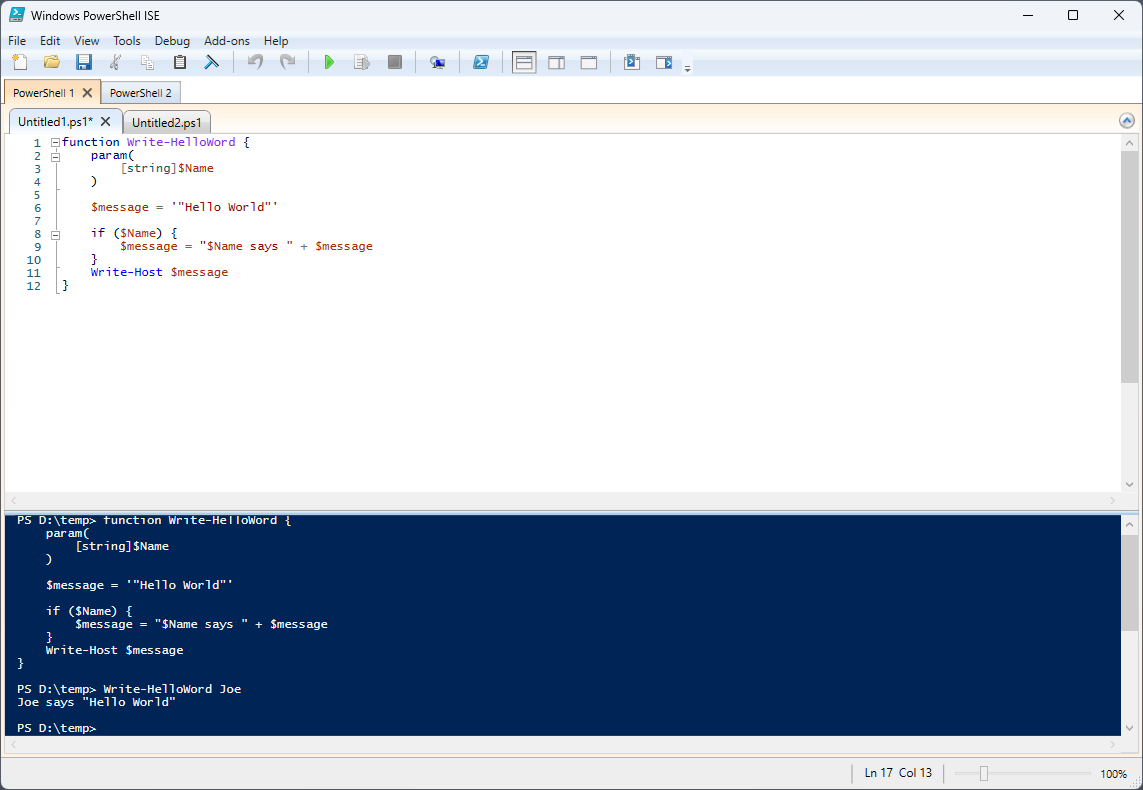
Image source: Microsoft Learn
The Current State of ISE
According to official Microsoft documentation , ISE is considered a legacy component. While it remains in Windows for compatibility with Windows PowerShell 5.1, it does not support PowerShell 6.0, 7.0, or later. It lacks support for modern language features, cross-platform modules, and the improved performance of the .NET Core-based PowerShell engine.
Why VS Code is the Official Successor
Visual Studio Code has become the primary development environment for PowerShell. It isn't just a text editor; it is a platform that leverages PowerShell Editor Services (PSES) to provide a rich development experience. The PowerShell Extension for VS Code offers features that ISE never could, including integrated Git version control, a massive extension marketplace, and a highly customizable interface.
How to Make VS Code Feel Like the Classic ISE
Many veterans find the transition to VS Code jarring. To ease this, you can enable "ISE Mode" within VS Code. This rearranges the layout to mimic the ISE, placing the console at the bottom and the Command Explorer on the side. Simply open the Command Palette (Ctrl+Shift+P) and type "Enable ISE Mode" to transform the interface.
code .
command in your terminal to open the current directory in VS Code immediately. This is the fastest way to transition from command-line exploration to full-scale script development.
How to Edit PowerShell Scripts Directly in the Terminal
For those who refuse to leave the console, several options provide a high-quality editing experience without a GUI. This is particularly vital when managing Windows Server Core or remote Linux instances via SSH.
The PSEdit Module Deep Dive
The
PSEdit
module is a community-driven solution that brings a functional editor directly into your session. It provides syntax highlighting and basic IntelliSense within the terminal window itself. It is widely considered one of the top choices for quick server-side fixes where installing a full IDE is not an option.
Installing CLI Editors via Winget
Windows now includes
winget
, a package manager that makes installing terminal editors effortless. To get a Linux-like experience on Windows, you can run these commands:
-
Micro
winget install zyedidia.micro -
Vim
winget install vim.vim -
Nano
winget install GNU.Nano
Micro is particularly popular among PowerShell users because it supports standard Windows shortcuts (like Ctrl+C and Ctrl+V), unlike the steeper learning curve of Vim.
The WSL Bridge Technique
If you have Windows Subsystem for Linux (WSL) installed, you already have access to powerful editors. You can call them directly from PowerShell using the bridge technique:
wsl nano filename.ps1
. This allows you to use the robust text manipulation tools of Linux while staying within your Windows file system.
Professional Tools for Enterprise Scripting and GUI Design
While VS Code handles 90% of use cases, certain professional requirements demand specialized software. When your scripts need to become full-fledged applications, enterprise tools step in.
Sapien PowerShell Studio
For developers who need to build complex graphical user interfaces (GUIs) for their scripts,
Sapien PowerShell Studio
is a top-tier option. It features a visual Form Designer that allows you to drag and drop buttons, text boxes, and grids, automatically generating the underlying PowerShell code. It also excels at packaging scripts into standalone
.exe
files and creating
.msi
installers for corporate deployment.
Comparison of Top PowerShell Editors
| Feature | VS Code | PowerShell ISE | PowerShell Studio | Micro (CLI) |
|---|---|---|---|---|
| PS 7+ Support | Full | None | Full | Basic |
| GUI Designer | No | No | Yes (Advanced) | No |
| Integrated Debugger | Excellent | Basic | Advanced | None |
| Cost | Free | Free (Built-in) | Paid (Enterprise) | Free |
Understanding the Engine Behind Modern PowerShell Editors
Modern editing isn't just about the interface; it's about the communication between the editor and the PowerShell engine. This is handled by the Language Server Protocol (LSP) .
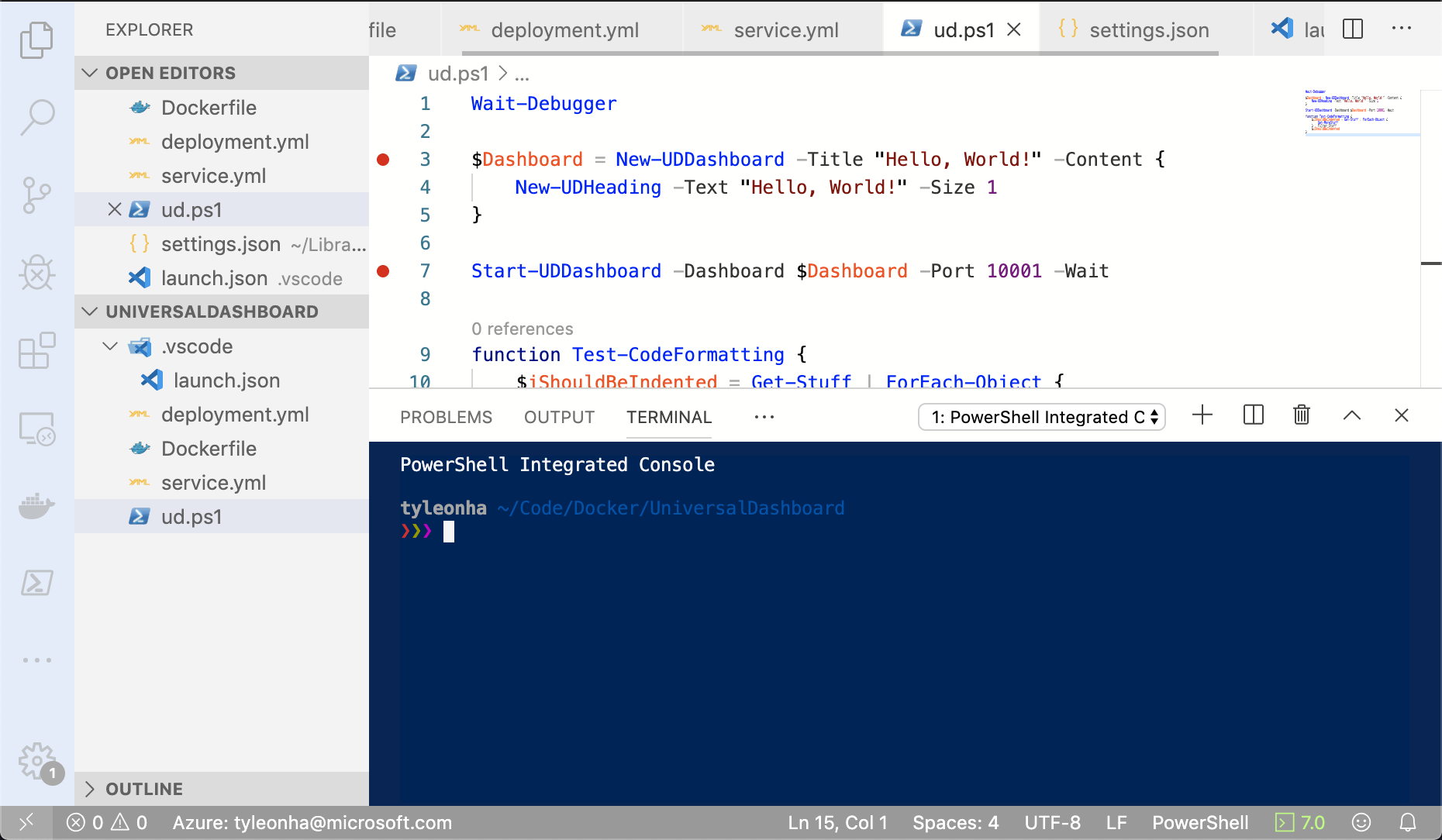
Image source: GitHub
What is PowerShell Editor Services (PSES)?
As detailed on the PSES GitHub repository , this project provides a common platform for PowerShell development support. Instead of every editor developer having to write their own parser for PowerShell, they simply connect to PSES. This is why you can get high-quality IntelliSense and debugging in editors as diverse as Sublime Text, Vim, and VS Code.
Customizing Your $PROFILE
To truly master your workflow, you should configure your PowerShell profile to point to your preferred editor. By adding a function to your
$PROFILE
, you can create a custom command like
edit
that opens any file in your tool of choice. For example:
function edit ($file) { code $file }This simple addition ensures that your environment feels cohesive and tailored to your specific needs.
Common Scripting Pitfalls and How Your Editor Can Fix Them
A top-rated editor does more than just display text; it prevents you from making costly mistakes. Understanding how your editor handles specific PowerShell nuances can save hours of debugging.
Solving Bracket and Parentheses Fatigue
PowerShell scripts often involve deeply nested loops and conditional statements. Missing a single closing bracket can break an entire module. Modern editors like VS Code offer "Bracket Pair Colorization," which assigns matching colors to opening and closing brackets, making it visually obvious when a pair is incomplete.
Handling Case Sensitivity on Linux
Windows is generally case-insensitive, but Linux is not. If you write a script in a Windows editor that calls a file named
MyScript.ps1
, it will work on Windows even if you type
myscript.ps1
. However, once you move that script to a Linux environment running PowerShell 7, it will fail. A good editor will help you maintain consistent casing to ensure cross-platform compatibility.
The Call Operator Nuance
Beginners often struggle with executing scripts that have spaces in their file paths. Simply typing the path results in an error. Editors help by suggesting the use of the call operator (
&
). For example:
& "C:\My Scripts\Start Process.ps1"
. Understanding this syntax is a major hurdle that a smart editor helps clear through auto-completion.
Which PowerShell Editor Should You Actually Use?
The "best" tool depends entirely on your specific role and environment. We have categorized the top choices into three distinct personas.
Lightweight & Fast
If you spend your day in remote sessions and need to fix scripts on the fly, focus on Micro and the PSEdit module. These tools keep you in the terminal and provide enough intelligence to get the job done without the overhead of a GUI.
Robust & Scalable
For building modules, integrating with Git, and daily coding, VS Code is the standard. Its extension ecosystem and debugging capabilities make it a top-tier choice for anyone writing more than ten lines of code at a time.
Professional & Polished
If you are creating tools for other people to use—especially those requiring a GUI or a standalone executable— Sapien PowerShell Studio is the way to go. The investment pays off in the time saved during interface design and deployment.
Key Takeaways for Choosing Your Editor
- Adopt VS Code as your primary environment for all modern PowerShell 7+ development.
- Enable ISE Mode in VS Code if you are struggling with the transition from the old Integrated Scripting Environment.
- Install a CLI editor like Micro via Winget for quick, terminal-based edits that don't break your workflow.
- Leverage PSES to bring PowerShell intelligence to your favorite niche editors like Vim or Sublime Text.
- Use PowerShell Studio specifically for enterprise tasks like GUI building and EXE packaging.
- Test for case sensitivity if you plan to run your scripts on Linux or macOS.
-
Automate your setup
by adding an "edit" alias to your PowerShell
$PROFILE.
Start by installing the PowerShell Extension in VS Code today to experience the most supported development environment available.
- Is PowerShell ISE going away soon?
- While Microsoft has deprecated ISE in terms of new features, it is not being removed from Windows. It remains a permanent part of the operating system to ensure compatibility with Windows PowerShell 5.1. However, it will never support PowerShell 7 or later versions, so moving to a modern editor is highly recommended for future-proofing your skills.
- Which free PowerShell editor is most recommended for beginners?
- Visual Studio Code is widely regarded as the top free option. It offers a gentle learning curve through its "ISE Mode" and provides immediate feedback on syntax errors, which is invaluable for those just starting. For those who prefer the command line, Micro is an excellent free choice due to its intuitive Windows-style keyboard shortcuts.
- How do I open a file in VS Code from the PowerShell prompt?
-
Once VS Code is installed and added to your system PATH (which happens by default during installation), you can simply type
code filename.ps1to open a specific file. If you want to open the entire folder you are currently in, typecode .. This is a standard practice for efficient developers. - Can I use Notepad++ for PowerShell scripting?
- Yes, Notepad++ is a popular choice for many sysadmins because it is lightweight and supports syntax highlighting for PowerShell. However, it lacks the integrated debugger and terminal console found in VS Code or PowerShell Studio. While it is a significant step up from standard Notepad, it does not offer the full "IDE" experience required for complex module development.
- How do I fix "Execution Policy" errors when running scripts from an editor?
-
This is a common security feature in Windows. If your editor cannot run your script, you likely need to change the execution policy. Open PowerShell as an Administrator and run
Set-ExecutionPolicy RemoteSigned. This allows you to run scripts you've written locally while still requiring a digital signature for scripts downloaded from the internet.