Home
Home
How to Find a Top-Rated Free iPad Image Editor Without Hidden Subscription Fees
As of late 2026, Snapseed remains a premier choice for users seeking a 100% free, professional-grade editor without subscriptions. For those who prefer a native experience, the iPadOS Photos app offers robust color grading tools. If you require advanced AI masking, the free tier of Adobe Lightroom is a strong contender, though it gates RAW editing and selective tools behind a paywall.
The Reality of Free Photo Editing on iPadOS in 2026
Navigating the App Store in 2026 can feel like walking through a minefield of "freemium" traps. Many apps marketed as a "free iPad image editor" are often little more than delivery vehicles for monthly subscriptions. According to community discussions on platforms like Reddit , users are increasingly fatigued by apps that require a credit card just to unlock basic cropping or color adjustment tools.
To find a truly cost-effective solution, you must distinguish between three categories of apps:
- Truly Free: Apps like Snapseed that offer every feature without in-app purchases.
- Native Tools: The built-in iPadOS Photos app, which has evolved into a highly capable editor.
- Freemium: Industry giants like Lightroom or Darkroom that provide a generous free tier but reserve "pro" features for subscribers.
In this guide, we bypass the marketing fluff to identify which tools actually provide professional results without reaching for your wallet. Whether you are a hobbyist or a professional looking for a mobile companion, understanding these distinctions is the first step toward a sustainable mobile workflow.
Why Snapseed Ranks Among the Top Choices for iPad Users
Owned by Google, Snapseed has maintained its status as a leading free editor for over a decade. Unlike many competitors that have transitioned to subscription models, Snapseed offers its entire suite of 30+ professional tools for free. This includes advanced features like Curves, White Balance, and RAW development, which are typically premium features in other ecosystems.
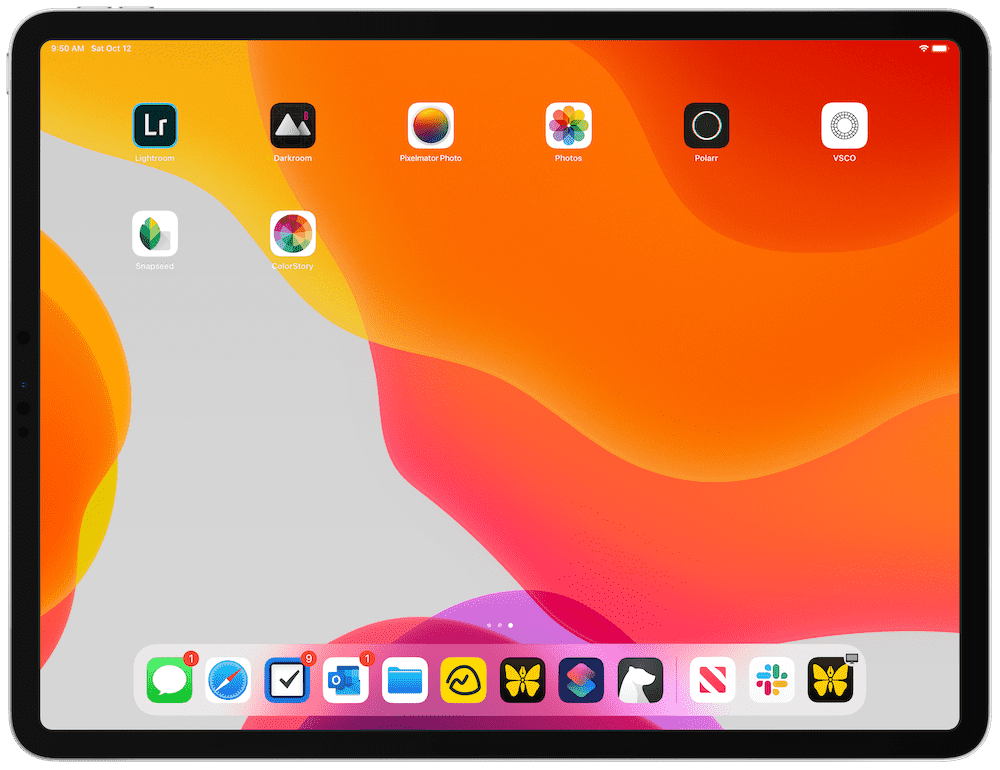
Image source: The Sweet Setup
The Power of Non-Destructive "Stacks"
One of Snapseed's most remarkable features is its "Stacks" system. Every edit you make is recorded as a layer that can be adjusted, deleted, or masked at any point in the process. This non-destructive workflow allows you to experiment with heavy filters and then go back to fine-tune the original exposure without losing your progress. Many users find this flexibility comparable to desktop-class software.
Precision with the Selective Tool
While most free apps only allow global adjustments (affecting the whole image), Snapseed includes a "Selective" tool. This allows you to place control points on specific areas—like a person's face or a dark corner of a room—and adjust brightness, contrast, and saturation only in that spot. In our assessment, this feature alone makes Snapseed a top-performing option for photographers who need localized control without paying for Adobe's AI masking.
How to Get the Most Out of the Native iPadOS Photos App
It is easy to overlook the app that comes pre-installed on your device, but the iPadOS Photos app has become a significant step forward in mobile editing. For roughly 80% of users, the native tools are more than sufficient for daily needs. As of recent iPadOS updates, the app supports advanced color grading, video editing, and even basic object lifting (Visual Look Up).
The primary advantage of the native app is its zero-bloat integration. Because it works directly with your iCloud library, there is no need to import or export files, which saves both time and storage space. According to NoCameraBag , the native app is widely regarded as one of the most stable environments for quick adjustments to saturation, brilliance, and definition.
Evaluating Freemium Editors and Their Free Tiers
While "free" is the goal, some paid apps offer enough value in their free versions to warrant a download. However, you must be aware of where the paywall starts.
Adobe Lightroom Mobile — Pro Features vs. Free Tools
Adobe Lightroom is a premier name in photography. The free version allows you to use basic light and color sliders, apply a variety of presets, and use the "Versions" feature to save different edit states. However, the "Generative Remove" AI and selective masking are locked. If you are already in the Adobe ecosystem, the free mobile app is a popular choice for consistent color science across devices.
Darkroom — A Powerful Alternative for Non-Destructive Editing
Darkroom stands out for its deep integration with the iPadOS file system. Its free tier is quite generous, offering a wide range of filters and basic adjustment tools. However, if you want to use the "Curves" tool or the "Color Grading" wheels—essential for professional-level cinematic looks—you will encounter a subscription prompt. Many users find it a strong contender for its speed and aesthetic interface.
Photoshop Express vs. Photoshop for iPad
There is often confusion regarding Adobe's mobile offerings. Photoshop Express is a truly free, simplified version of Photoshop designed for quick fixes, collages, and social media posts. In contrast, Photoshop for iPad is a full-featured desktop port that requires a Creative Cloud subscription. For most users looking for a free iPad image editor, Express is the appropriate choice, though it lacks the layer-based complexity of its bigger brother.
The Zero-Dollar Pro Stack: A Multi-App Workflow
Instead of searching for one app that does everything, many mobile professionals use a "stacking" strategy. By combining the strengths of different free tools, you can replicate a $150/year subscription workflow for zero dollars. This is a highly impactful way to maintain professional standards on a budget.
- Culling and Global Edits in Native Photos: Start by reviewing your shots in the native Photos app. Use the "Auto" enhance or manual sliders for basic exposure and cropping. This keeps your library organized and utilizes Apple's efficient RAW processing.
- Precision Tuning in Snapseed: Share the photo to Snapseed for technical work. Use the "Curves" tool to set your black and white points, and the "Selective" tool to draw the viewer's eye to the subject.
- Specialized Cleanup with Healing Tools: If there are distracting power lines or skin blemishes, use Snapseed’s "Healing" tool. While not as advanced as Adobe's AI, it is exceptionally strong for removing small objects against simple backgrounds.
- Final Export and Archiving: Export the final image back to your camera roll. By doing this, you avoid the "Secondary File Bloat" that occurs when keeping active projects in multiple third-party apps.
Addressing Technical Pitfalls and iPad Storage Issues
Editing on an iPad presents unique challenges that desktop users rarely face. One of the most common issues is Secondary File Bloat . Many non-destructive editors save a "sidecar" file or a full copy of the image within the app's own storage. Over time, this can consume gigabytes of space, even if you have deleted the original photo from your camera roll.
Another concern in 2026 is the rise of AI Artifacts . While free AI tools for object removal are becoming more common, they often leave behind blurred textures or "ghost" edges. According to testing by Wirecutter , it is often better to use a manual healing brush for precision rather than relying on low-tier generative AI that can ruin the resolution of your image.
Comparing Top Free iPad Image Editors
The following table breaks down the features of the most popular free options to help you decide which fits your specific creative needs.
| App Name | Best For | 100% Free? | RAW Support | Apple Pencil Optimized |
|---|---|---|---|---|
| Snapseed | Pro-level precision | Yes | Yes (DNG) | Excellent |
| Native Photos | Speed & Organization | Yes | Yes | Basic |
| Lightroom (Free) | Color Science | Freemium | Paid Only | Good |
| Photoshop Express | Social Media/Collage | Yes | Limited | Basic |
| Darkroom | Library Integration | Freemium | Yes | Good |
Common Questions About Free iPad Photo Editing
- Which iPad photo editor is 100% free with no hidden subscriptions?
- Snapseed is the most prominent example of a professional-grade editor that is completely free. It includes all tools, filters, and export options without any in-app purchases or watermarks. The native iPadOS Photos app is also 100% free and built into the system.
- Can I use Adobe Photoshop on iPad for free?
- You can use Photoshop Express for free, which is great for basic edits and collages. However, the full "Photoshop for iPad" app, which supports layers and complex compositing, requires a paid Adobe Creative Cloud subscription. There is no "full" version of Photoshop that is free.
- What is a top-rated free iPad photo editor for Apple Pencil users?
- Snapseed stands out as a top choice for Apple Pencil users because its interface relies on sliding gestures that feel very natural with a stylus. The "Selective" and "Brush" tools allow for high-precision masking that is much easier to perform with a Pencil than with a finger.
- How do I edit RAW photos on an iPad for free?
- The native Photos app can handle RAW files directly from your camera. For more advanced RAW development, Snapseed supports DNG files and provides a dedicated "RAW Develop" menu that appears automatically when you open a compatible file. Note that compatibility depends on what iPadOS natively decodes.
- Does Snapseed lower image quality upon export?
- By default, Snapseed may compress images to save space. However, you can go into the app settings and change the export quality to 100% and ensure that format settings are set to PNG or high-quality JPEG to preserve as much detail as possible.
Key Takeaways for Mobile Editors
Choosing the right tool depends on your specific needs, but the "Zero-Dollar Pro" philosophy proves you don't need a subscription to create stunning imagery.
- Snapseed is the gold standard for users who want professional tools like Curves and Selective editing without paying a dime.
- Master the native Photos app first; its integration with iCloud and recent updates make it a highly impactful tool for 80% of editing tasks.
- Use the "Workflow Stacking" method to combine the strengths of different apps and avoid the limitations of a single free tier.
- Monitor your storage regularly to prevent "Secondary File Bloat" from third-party apps that save hidden copies of your projects.
- Check iPadOS compatibility before downloading, as modern apps like Lightroom often require the latest operating system versions to function correctly.
Start by downloading Snapseed and exploring the "Stacks" feature to see how non-destructive editing can transform your mobile photography today.