Home
Home
How to Fix the "This Content Isn't Available" YouTube Error on Any Device
The 3-Refresh Trick: Open the video in a new tab and refresh the page exactly three times in rapid succession to force a token reset.
Ad-Blocker Conflict: YouTube's 2026 detection scripts often trigger this error if your ad-blocker filters are outdated.
Account Re-sync: Remove your Google account from device settings and re-add it to refresh authentication tokens.
DNS Settings: Switch to Google Public DNS (8.8.8.8) to bypass ISP-level content delivery failures.
Encountering the "This content isn't available" message on YouTube is a frustrating experience that has become increasingly common as the platform updates its security and advertising protocols. Unlike a simple "Video Deleted" notice, this specific error usually indicates a technical handshake failure between your device and YouTube's servers. Whether you are on a desktop browser, a modern smartphone, or a legacy device, this guide provides a systematic approach to restoring your access.
Quick Fixes to Try Before Changing Your Settings
Before diving into complex network configurations, it is essential to rule out temporary glitches. Many users find that the platform's delivery system occasionally fails to validate a user session, leading to a generic availability error.
The Three-Refresh Protocol
One of the most effective community-vetted solutions is known as the "3-Refresh Protocol." According to Google Support community discussions , simply hitting the refresh button once may not be enough to clear a stuck server-side handshake. Instead, follow these steps:
- Right-click the video link or the current URL and select "Open in New Tab."
- Once the new tab loads and shows the error, press F5 (or the refresh icon).
- Repeat the refresh two more times in rapid succession.
This method forces the YouTube player to re-verify your session token multiple times, which often clears temporary metadata mismatches that cause the "unavailable" string.
Check the YouTube Server Status
Sometimes the problem isn't on your end. YouTube manages a massive global infrastructure, and localized outages can prevent specific content clusters from loading. Before troubleshooting your hardware, check a third-party monitoring tool like DownDetector. If there is a massive spike in reports, the issue is likely a platform-wide outage that requires patience rather than technical intervention.
The Clean Browser Test
If Incognito Mode doesn't work, try a "Clean Browser Test." This involves using a secondary browser you rarely use—such as a fresh install of Firefox or Brave—with no extensions or custom settings. If the video plays there, you know the problem lies within your primary browser's profile or cache. This helps you avoid resetting your entire system when only one application is at fault.
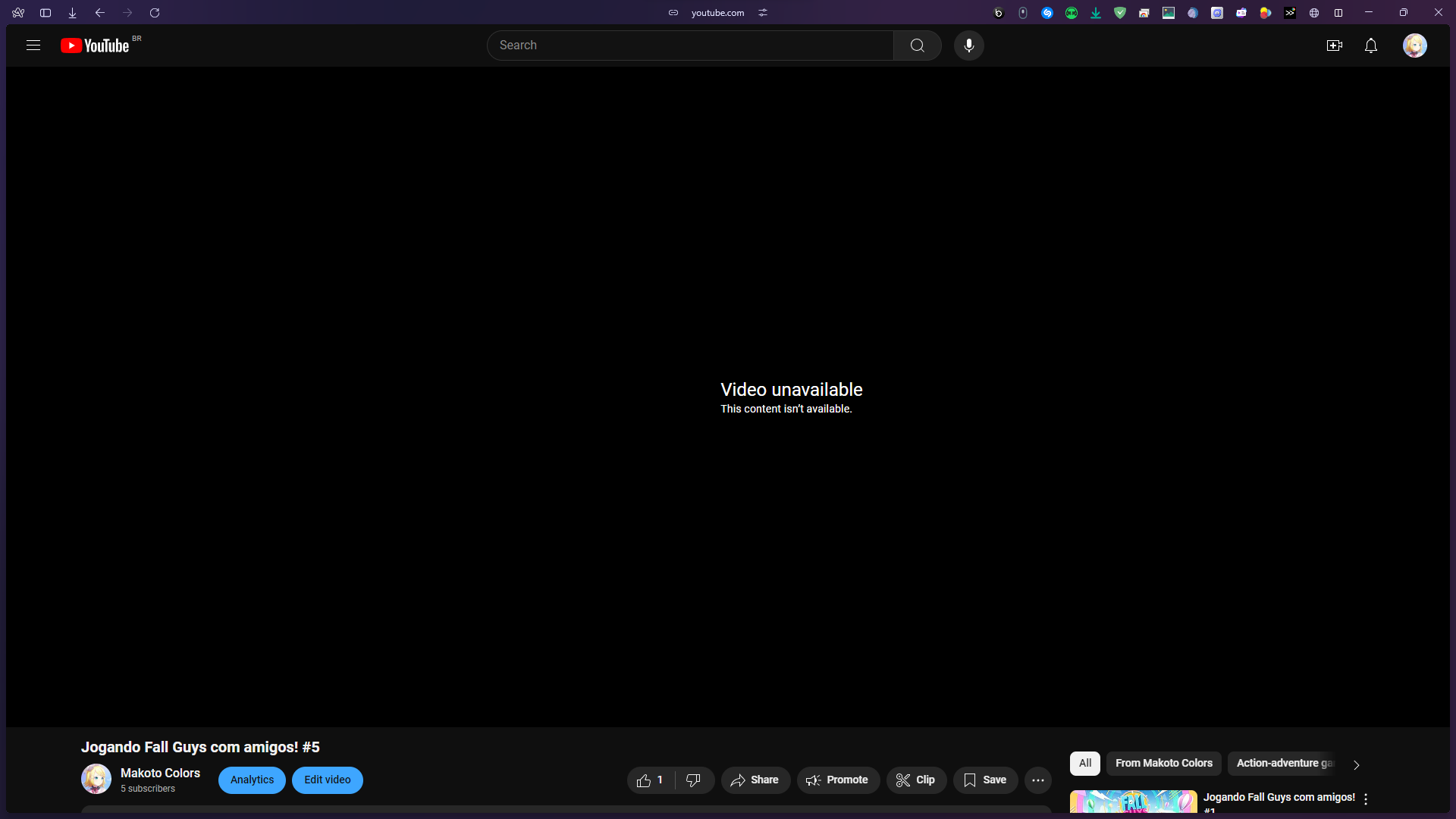
Image source: Google Help
Why Your Ad Blocker Might Be the Primary Cause
In recent years, YouTube has significantly intensified its crackdown on ad-blocking software. When the platform's detection scripts identify an extension interfering with ad delivery, it may intentionally trigger the "This content isn't available" error as a deterrent. This is a significant advancement in how the platform enforces its Terms of Service.
YouTube’s Anti-Ad-Blocker Crackdown
The error is frequently a byproduct of "script wars" between YouTube and ad-blocker developers. When YouTube updates its ad-serving code, ad blockers may break the video player entirely while trying to hide the new ad formats. Many users report that disabling their ad blocker immediately restores video functionality. According to technical analysis from community experts , this is one of the most common triggers for the error in 2026.
How to Whitelist YouTube Correctly
If you prefer to keep your ad blocker active for other sites, you should whitelist YouTube specifically. In extensions like uBlock Origin or AdBlock Plus, click the extension icon while on YouTube and select the "Power" or "Disable for this site" button. Ensure you refresh the page after making this change to allow the official scripts to load without interference.
Updating Your Filter Lists
If you are committed to using an ad blocker, you must keep your filter lists updated to the latest version. Most blockers allow you to go into the settings, navigate to "Filter Lists," and click "Update Now" or "Purge all caches." Staying current with these filters is a highly effective way to avoid the detection scripts that cause the "content not available" message.
How to Solve the Error on Mobile Devices
On mobile platforms, the error is often tied to the YouTube app's internal database or the Google account authentication stored on the device. Unlike browsers, mobile apps rely on persistent API tokens that can become "stale" over time.
Re-Sync Your Google Account
A deep-dive fix that ranks among the top solutions for Android and iOS users involves re-syncing the primary Google account. If the authentication token is corrupted, the app cannot verify your right to view the content. To fix this:
- Go to your device Settings .
- Navigate to Accounts or Users & Accounts .
- Select your Google account and choose Remove Account .
- Restart your device and re-add the account.
This forces a complete refresh of all Google-related tokens on the device, often resolving persistent availability errors that clearing the cache cannot touch.
Clear the YouTube App Cache and Data
Corrupted temporary files are a frequent culprit. On Android, you can navigate to Settings > Apps > YouTube > Storage and select "Clear Cache." If that fails, "Clear Data" will reset the app to its factory state. iOS users can achieve a similar result by "Offloading" the app in the storage settings and then re-installing it, which preserves your settings but refreshes the core binaries.
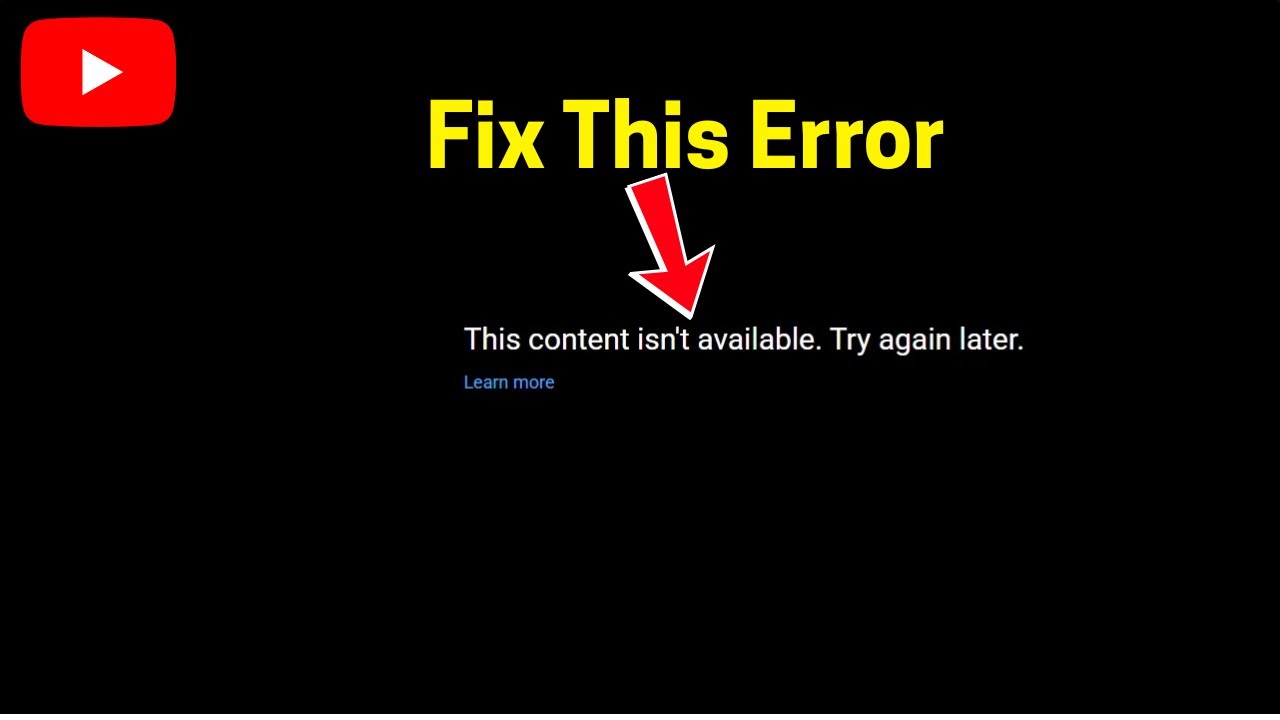
Image source: YouTube
Troubleshooting for Legacy Devices and Third-Party Apps
As YouTube evolves, older hardware and unofficial applications often lose compatibility, resulting in the "Content not available on this app" message. This is particularly common for users of older Smart TVs or modified mobile clients.
The Official Fallback for Older Hardware
For devices that can no longer run the latest version of the YouTube app, Google provides an official fallback. According to
official Google documentation
, users on legacy hardware should use a mobile browser to access
m.youtube.com
. The mobile website uses a more universal player that is less dependent on the latest API updates, making it a top-tier choice for older tablets and TVs.
Why Third-Party Apps Are Blocked
Google has taken a firm stance against third-party apps that modify the YouTube experience or bypass ads. These apps often use unofficial API hooks that Google can disable at any time. When an API key is revoked or a specific version of a third-party client is flagged, every user of that app will see the "Content not available" error. Switching back to the official YouTube client is usually the only permanent fix in these scenarios.
Fixing Network and Privacy Configuration Issues
Your internet connection's configuration can also be the source of the problem. Specifically, how your device translates web addresses (DNS) and how it handles encrypted traffic can interfere with YouTube's Content Delivery Network (CDN).
Switching to Google Public DNS
ISP-provided DNS servers are sometimes slow to update or may inadvertently block specific YouTube video servers. Switching to a high-performance DNS like Google Public DNS can resolve these routing issues. Set your primary DNS to
8.8.8.8
and your secondary to
8.8.4.4
. Many users find this stabilizes their connection and eliminates "Try again later" errors.
Manage Secure DNS Settings in Chrome
Modern browsers use "DNS-over-HTTPS" (DoH) to improve privacy. However, this can sometimes conflict with how YouTube routes video traffic to the server closest to you. If you are experiencing the error, try toggling this setting in Chrome by going to Settings > Privacy and Security > Security and looking for "Use secure DNS." Testing with this feature turned off can help identify if your privacy settings are too restrictive for the video player.
The VPN Conflict Resolution
VPNs are a double-edged sword for YouTube users. While they can help you bypass regional blocks, Google also maintains a list of known VPN IP addresses that are frequently used by bots. If you are on a flagged IP, YouTube may block your access entirely. As noted by Meristation's technical guides , you should toggle your VPN: if it's on, turn it off; if it's off, try turning it on to see if your local IP has been temporarily restricted.
Is the Video Actually Gone?
It is important to distinguish between a technical error you can fix and a status change by the uploader that you cannot. The table below helps you identify the specific meaning behind different error strings.
| Error Message | Likely Cause | Can You Fix It? |
|---|---|---|
| "This content isn't available" | Technical glitch, Ad-blocker, or DNS | Yes (Follow this guide) |
| "Video unavailable: This video is private" | Uploader changed privacy settings | No (Requires uploader access) |
| "This video has been removed" | Terms of Service violation or Deleted | No (Video is gone) |
| "Content not available on this app" | Third-party app/API block | Yes (Switch to official app) |
| "The uploader has not made this video available in your country" | Geographic licensing restriction | Yes (Use a reputable VPN) |
Restricted Mode Settings
If you are using a computer at a school, office, or a home with parental controls, "Restricted Mode" might be active. This setting hides videos that contain potentially mature content. If the "This content isn't available" error only appears for certain types of videos, check the bottom of the YouTube settings menu to see if Restricted Mode is turned on and if you have the permissions to disable it.
Frequently Asked Questions
Why does refreshing three times fix the YouTube error?
Refreshing multiple times forces the browser to discard the current session metadata and request a fresh handshake from YouTube's authentication servers. Often, the first request fails due to a minor timing mismatch or a stale cookie. By the third refresh, the server typically issues a new, valid token that allows the video stream to initialize correctly. This is one of the most widely regarded "quick fixes" in the user community.
Can I fix this error on a Smart TV?
Yes, though the process is slightly different. Start by checking for a system software update in your TV's settings. If the YouTube app is still failing, try "Resetting" the app within the YouTube settings menu or clearing the TV's system cache. For older TVs that no longer receive updates, using the TV's built-in web browser to visit the YouTube mobile site is a highly recommended alternative.
Does YouTube block VPNs?
YouTube does not have a blanket ban on VPNs, but it does block specific IP addresses associated with high-volume bot activity. Many commercial VPN providers share IP addresses among thousands of users, which can trigger YouTube's security filters. If you see the "content not available" error while using a VPN, try switching to a different server location or a different protocol (like WireGuard) to obtain a cleaner IP address.
What does "Content not available on this app" mean?
This specific wording almost always indicates that you are using an unofficial or outdated third-party application. Google frequently updates its API to prevent ad-blocking and ensure that creators receive revenue. When an app doesn't comply with these new API requirements, Google blocks the stream for that specific client. The only reliable solution is to switch to the official YouTube app or the mobile website.
Why can I see the thumbnail but not the video?
Thumbnails and video streams are served from different parts of YouTube's infrastructure. The thumbnail is static metadata that is easily cached and delivered. The video stream, however, requires a real-time secure handshake and a high-bandwidth connection. If your DNS is misconfigured or your ad-blocker is interfering with the video player's initialization scripts, the metadata (thumbnail) will load fine, but the stream itself will trigger the availability error.
Key Takeaways for Fixing YouTube Errors
- Perform the 3-Refresh Protocol in a new tab to clear temporary session glitches.
- Disable or update ad-blockers to ensure they aren't being flagged by YouTube's detection scripts.
- Test in Incognito Mode to determine if the issue is caused by your browser profile or extensions.
- Re-sync your Google Account on mobile devices to refresh authentication tokens.
- Switch to Google Public DNS (8.8.8.8) to resolve network routing failures.
- Use the mobile website (m.youtube.com) as a fallback for legacy hardware or broken apps.
- Check the error message against our diagnostic table to see if the video is actually deleted.
By following these steps in order, you can systematically eliminate the most common technical barriers and return to your favorite content.