Home
Home
How to Fix the YouTube This Content Isn't Available Error in 2026
If you encounter the "This content isn't available" message, follow these steps in order:
- Test Incognito Mode: If the video plays, the issue is likely a browser extension or an account-level flag.
- Update Ad-Blocker Filters: For uBlock Origin or Brave, force an update of the "Quick Fixes" or "Filter Lists."
- Disable Hardware Acceleration: Go to browser settings > System and toggle off "Use graphics acceleration when available."
- Check Regional Laws: If you are in Australia or France, ensure your account age is verified to comply with local social media regulations.
Encountering a black screen with the message "This content isn't available" has become a frequent frustration for users in 2026. While this error historically signaled a deleted video or a private upload, the context has shifted significantly. In recent months, this message has emerged as a primary symptom of the ongoing "Ad-Blocker War" between Google and third-party extension developers. According to reports from the Brave Community , the error often persists even when the video is perfectly active for other users.
Understanding the root cause is essential because the fix for a technical glitch is vastly different from the fix for an account-level restriction. Whether you are dealing with simulated connection errors, regional age-verification laws, or conflicting browser scripts, this guide provides the most effective methods to restore your playback experience.
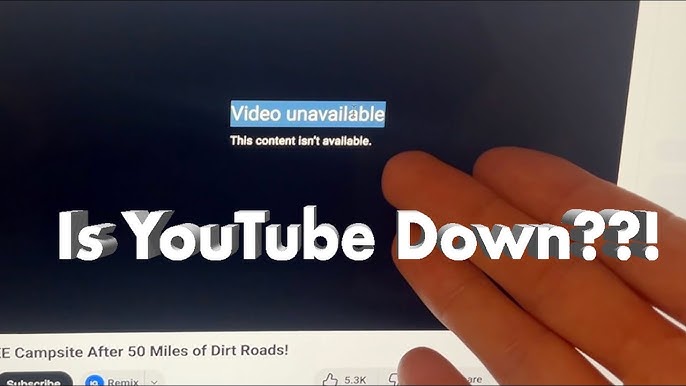
Image source: YouTube
Understanding Why YouTube Displays the Content Unavailable Message
In 2026, the "Content Not Available" error is rarely a simple bug. It is often a deliberate gatekeeping mechanism. To fix it, you must first identify which category of block you are facing.
Distinguishing Between Deleted Content and Technical Blocks
If a video has been removed by the creator or taken down for copyright violations, the error message usually specifies the reason (e.g., "This video has been removed by the uploader"). However, when the screen simply says "This content isn't available," it typically points to a script-level interruption. A key indicator of a technical block is the "Simulated Connection Error." Users have observed that the video player may show a healthy grey buffer bar—indicating the data has been downloaded—yet the video refuses to play. This suggests that YouTube's anti-adblock scripts are intentionally stalling the player to discourage the use of unauthorized extensions.
The Rise of Account-Level Flagging
One of the most complex developments in recent years is account-level flagging. Google frequently utilizes A/B testing, where specific accounts are placed into "buckets" that receive stricter enforcement of platform terms. As noted by Android Police , a user might see the error while logged into their primary account but find that the exact same video plays perfectly in Incognito mode or on a secondary account. This confirms that the restriction is tied to the user's identity rather than the device or browser itself.
Immediate Troubleshooting Steps for Quick Resolution
Before diving into complex script edits, try these rapid diagnostic steps that resolve the majority of playback issues.
Open the video in a private or incognito window. If it plays, your main browser profile has a conflicting extension or a flagged cookie that needs to be cleared.
When the error appears, click the blue "Learn More" button. Immediately hit the "Back" button on your browser. This often forces the player to re-initialize and bypass the initial block script.
Verify if the issue is global. Use tools like DownDetector to see if YouTube is experiencing a widespread outage, as reported by AS.com during recent server hiccups.
If these steps do not work, the issue is likely deeper within your browser's interaction with YouTube's 2026 security scripts. The next step involves looking at your ad-blocking software and how it communicates with the platform's servers.
Advanced Methods to Bypass Ad-Blocker Detection Scripts
The "Ad-Blocker War" has escalated to a point where simply having an extension installed—even if it is disabled for YouTube—can trigger the "Content Not Available" error. This is because YouTube's detection scripts look for the presence of ad-blocking code in the browser's memory.
Updating Filters for uBlock Origin and Brave
Standard ad-blocking lists are often outdated within hours as YouTube updates its detection algorithms. To stay ahead, you must manually force updates to your filter lists. In uBlock Origin, go to the Dashboard > Filter Lists and click "Purge all caches," then "Update now." For Brave users, navigating to
brave://settings/shields/filters
and ensuring all lists are active is a top-rated approach.
The scripts above, identified by community developers, help mask the browser's fetch requests, preventing the platform from identifying the ad-blocker's intervention. Adding these to your "My Filters" tab can significantly improve playback stability.
Identifying Conflicting Extensions
It isn't just ad-blockers causing trouble. Extensions like "Return YouTube Dislike," "YouTube Short Block," or even certain dark mode skins can trigger the error. These extensions modify the site's Document Object Model (DOM), which YouTube's security suite may flag as "unauthorized modification."
| Extension Type | Detection Risk | Recommended Action |
|---|---|---|
| Standard Ad-Blockers | High | Use uBlock Origin with custom filters. |
| UI Modifiers (Dislikes, etc.) | Medium | Disable temporarily to test playback. |
| Privacy/Script Blockers | High |
Whitelist
googlevideo.com
and
youtube.com
.
|
| VPN Extensions | Medium | Switch to a desktop-level VPN app. |
Navigating Regional Restrictions and Age Verification Laws
In 2026, the "Content Not Available" error is frequently a legal requirement rather than a technical bug. New regulations in several countries have changed how content is served.
New Laws in Australia and France
As of late 2025 and early 2026, Australia and France have implemented strict social media age-verification laws. In Australia, users under 16 face significant restrictions, while France has set the threshold at 15. YouTube uses an automated "age-guessing" algorithm based on your viewing habits and account data. If the system cannot verify your age, it may default to a "Content Not Available" screen for any video that isn't explicitly marked as "For Kids." If you are in these regions, you may need to provide a valid ID or credit card to verify your age in your Google Account settings to regain access.
The VPN Paradox
While VPNs are a strong contender for bypassing geo-blocks, they can also be the cause of the error. YouTube has started flagging specific IP ranges associated with popular VPN providers as "bot-like." If you are connected to a heavily used VPN server, YouTube may block all video playback to prevent automated scraping. If you see the error while your VPN is active, try switching to a different server location or a "dedicated IP" if your provider offers one.
Optimizing Browser Settings for Stable Playback
Sometimes the error is caused by a breakdown in how your browser handles video data. This is particularly common in Chromium-based browsers like Chrome, Edge, and Brave.
Disabling Hardware Acceleration
Hardware acceleration allows the browser to use your computer's GPU to render video. However, in 2026, conflicts between browser updates and GPU drivers have led to frequent playback stalls. According to VideoProc , disabling this feature is one of the most effective ways to fix persistent "Content Unavailable" loops.
- Open your browser settings.
- Search for "System" or "Performance."
- Locate "Use graphics acceleration when available" and toggle it off.
- Relaunch your browser and try the video again.
Clearing Site-Specific Cookies
You don't need to clear your entire browser history. Instead, focus on YouTube's specific data. In Chrome, click the padlock icon in the address bar while on YouTube, select "Cookies and site data," and then "Manage on-device site data." Delete all entries related to
youtube.com
and
google.com
. This forces a fresh handshake between your browser and the video servers, often clearing account-level flags that were cached locally.
Resolving Playback Issues on Mobile Devices
The mobile experience offers fewer settings to tweak, but the "Content Not Available" error is just as prevalent on Android and iOS.
- App Cache (Android)
- Go to Settings > Apps > YouTube > Storage and tap "Clear Cache." This removes temporary files that may be corrupted.
- Offloading the App (iOS)
- Go to Settings > General > iPhone Storage > YouTube and select "Offload App." This deletes the app but keeps your data, allowing for a clean reinstallation from the App Store.
- Third-Party Clients
- Many users have turned to alternative clients like ReVanced. These apps often include built-in patches to bypass the "Content Not Available" errors that plague the official app, though they require manual installation and updates.
Frequently Asked Questions About YouTube Availability
Does "This content isn't available" mean I am blocked by the creator?
Not necessarily. If a creator blocks you, you typically cannot see their channel or comment on their videos, but the video itself may still appear as "Private" or "Unavailable" depending on your login status. The generic "This content isn't available" message is much more likely to be a technical error or an ad-blocker detection flag rather than a personal block from the uploader.
Why does the video work on my phone but not my desktop?
This is a classic sign of browser-level interference. Your desktop browser likely has extensions (like ad-blockers or privacy shields) that the mobile app does not. Additionally, YouTube often uses different detection scripts for desktop browsers than it does for its mobile API. If it works on one but not the other, focus your troubleshooting on the browser extensions and hardware acceleration settings of the failing device.
How long does an account-level "cooldown" period last?
If your account has been flagged for using ad-blockers, users report that the "cooldown" period typically lasts between 24 and 48 hours. During this time, you may see the error on all videos while logged in. The most effective workaround is to use Incognito mode or a different account until the flag expires. Consistently updating your filter scripts can prevent these flags from recurring.
Can I fix this error on a Smart TV or Roku?
On Smart TVs, the error is usually caused by network-level ad-blocking (like Pi-hole or custom DNS settings). If you have modified your router's DNS to block ads, YouTube's TV app may fail to load content. Try reverting your DNS settings to "Automatic" or using Google's DNS (8.8.8.8) to see if playback resumes. Additionally, ensure the YouTube app on your TV is updated to the latest version.
Is it legal to use filter scripts to bypass these messages?
Using filter scripts to modify how a website appears on your own device is generally legal under current user rights frameworks. However, it does violate YouTube's Terms of Service, which is why the platform actively tries to block these scripts. While you won't face legal trouble, your account could be subject to temporary restrictions or "cooldown" periods if the platform detects consistent bypassing of its security measures.
The Bottom Line: Key Takeaways for 2026
- Identify the source: Use Incognito mode to determine if the block is account-based or browser-based.
- Stay updated: Manually purge and update your uBlock Origin or Brave filter lists daily to stay ahead of detection scripts.
- Manage hardware: Disable hardware acceleration if you experience stalling despite a full buffer bar.
- Verify your age: If you are in Australia or France, complete the official age verification to avoid regional gates.
- Check your VPN: If a video is blocked, try disconnecting your VPN or switching to a less congested server.
- Use the UI bypass: Clicking "Learn More" and then "Back" is a surprisingly effective way to force the player to load.
For the most consistent experience, maintain a clean browser profile and keep your security extensions updated with the latest community-verified filter scripts.
All trademarks, copyrighted content, and quoted material referenced in this article belong to their respective owners. Brief excerpts are used under fair use (17 U.S.C. § 107) for purposes of commentary, criticism, and informational reporting. This article is not affiliated with or endorsed by Google or YouTube.