Home
Home
How to Fix the YouTube This Content Isn't Available Try Again Later Error
If you encounter the "This content isn't available. Try again later" error on YouTube, it is often triggered by outdated ad-blocker filters or account-level flagging. To resolve this immediately:
- The "Learn More" Trick: Click the "Learn More" button on the error screen, wait one second, and hit your browser's Back button.
- Update uBlock Origin: Go to your extension dashboard, click Filter lists , select Purge all caches , and then Update now .
- Incognito Test: Open the video in a Private/Incognito window. If it plays, the issue is likely tied to your logged-in Google account or a specific browser extension.
Seeing a playback error right when you sit down to watch a video is a high-friction experience that has become increasingly common in 2026. As YouTube continues to refine its platform security and advertising integrity, users frequently encounter messages that suggest content is unavailable. While this can be frustrating, the error is rarely a permanent restriction on your account. Instead, it is typically a "soft block" caused by a mismatch between your browser's environment and YouTube's detection scripts.
This guide provides a deep dive into the technical reasons behind these interruptions and offers community-tested workarounds to restore your viewing experience across desktop, mobile, and Smart TV platforms.
Immediate Solutions to Restore YouTube Video Playback
When the error appears, your first instinct might be to refresh the page. While a single refresh occasionally works, more specific sequences are often required to bypass the initial detection trigger. These methods are designed to re-initialize the player session without triggering the same security flags.
The Three-Refresh Technique for Desktop Users
According to community discussions on Reddit's r/youtube community , a rapid-fire refresh sequence can sometimes force the player to load. The "3-Refresh Rule" involves opening the video link in a new tab and hitting the refresh button (or F5) three times in quick succession. The logic behind this is that YouTube's "heartbeat" script—which checks for ad blockers shortly after a video starts—may fail to execute correctly if the page is reloaded before the script fully initializes. If the video begins to play after the third refresh, it is advisable to close all other open YouTube tabs to prevent conflicting sessions from triggering a secondary block.
Using the Learn More and Back Button Loophole
One of the most effective workarounds identified in recent months involves the "Learn More" link provided within the error message itself. When the "Content isn't available" overlay appears, click the blue Learn More button. This will redirect you to a Google Help page. As soon as that page begins to load, immediately click your browser's Back button. Reports from Android Police suggest that this specific navigation sequence can reset the player's state, allowing the video to bypass the initial restriction and play normally.
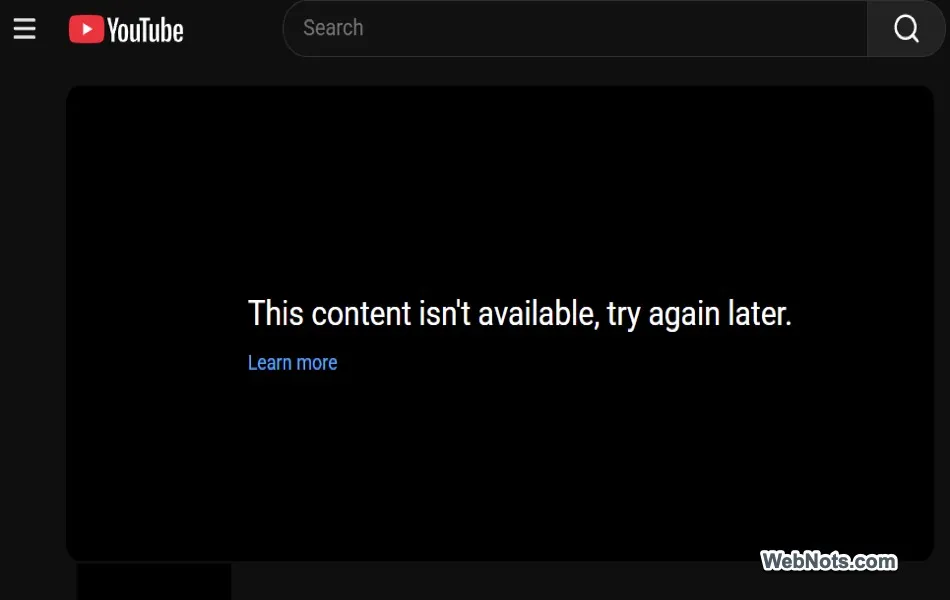
Image source: WebNots
Testing Playback in Incognito or Private Windows
To determine if the problem is account-based or extension-based, you should always perform an Incognito test. Press
Ctrl+Shift+N
(Chrome/Brave) or
Ctrl+Shift+P
(Firefox) and paste the video URL. If the video plays without issue in Incognito mode, your browser extensions (like ad blockers) or your logged-in Google account are likely the source of the conflict. If it still fails in Incognito, the issue may be related to your IP address or network configuration.
Understanding the Causes of the Content Not Available Message
To fix the problem permanently, it helps to understand why it is happening. In 2026, the landscape of web browsing has changed significantly, particularly regarding how browsers handle scripts and extensions.
The 2026 Enforcement of Anti-Adblock Policies
YouTube has intensified its efforts to ensure that creators are rewarded for their content, which involves a stricter stance on third-party applications and extensions that bypass advertisements. As noted in official Google Support documentation , apps that violate YouTube's API Terms of Service by disabling ads may face playback restrictions. This enforcement often manifests as the "Content isn't available" message, serving as a deterrent rather than a permanent ban.
Technical Limitations of Manifest V3 Extensions
The transition to Manifest V3 (MV3) in Chromium-based browsers (like Chrome and Edge) has fundamentally altered how ad blockers function. MV3 limits the ability of extensions to modify network requests in real-time, making it easier for YouTube to detect when an ad-blocking script is active. This technical shift is a primary reason why users on Chrome may experience more frequent playback errors compared to those using browsers that still support older extension architectures.
Distinguishing Between Account Flags and IP Blocks
Research from StackExchange indicates that YouTube can flag specific accounts rather than entire IP addresses. If you find that you can watch videos while logged out but not while logged in, your account has likely been flagged for "unusual activity," which often refers to persistent ad-blocker usage. Conversely, if the error persists across all devices and accounts on the same Wi-Fi, your IP address might be temporarily blacklisted due to high request volumes or VPN usage.
Resolving Playback Errors Triggered by Ad Blockers
For many users, the error is a direct result of an ad blocker being detected. Rather than disabling your protection entirely, you can often resolve the issue by keeping your filter lists current.
Manually Updating uBlock Origin Filter Lists
uBlock Origin remains a top-rated choice for many users, but it requires manual intervention when YouTube updates its detection scripts. Follow these steps to refresh your filters:
- Click the uBlock Origin icon in your browser toolbar and open the Dashboard (the gears icon).
- Navigate to the Filter lists tab at the top.
- Click the Purge all caches button. This clears the old, detected versions of the filters.
- Click Update now . Wait for the progress bars to finish.
- Restart your browser and try the video again.
Managing Multiple Extension Conflicts
Running multiple ad blockers simultaneously (such as AdBlock Plus alongside uBlock Origin) is a common pitfall. Having two different extensions attempting to modify the same network requests creates a "noisy" browser environment that is much easier for YouTube's security systems to identify. For the most stable experience, it is highly recommended to use only one reputable ad blocker and disable all others for the YouTube domain.
Transitioning to More Resilient Browsers
If you are consistently facing issues on Chrome, consider switching to Firefox or Brave . Firefox uses its own extension engine that is not bound by the same MV3 restrictions as Chrome, allowing ad blockers to operate with greater flexibility. Brave, on the other hand, has a built-in "Shields" feature that is integrated directly into the browser's core code, making it exceptionally strong at avoiding detection compared to standard browser extensions.
Addressing Account and Network Connectivity Problems
If ad blockers aren't the culprit, the issue may lie within your Google account settings or your internet connection's routing.
Verifying Account Status and Flagging
If your account is flagged, you might need to "clear" the flag by changing your behavior for a short period. Try logging out of your account and watching a few videos as a guest. If this works, stay logged out for 24 to 48 hours. This "cooling off" period can sometimes reset the account-level flag. Additionally, ensure that your account information is up to date and that you haven't exceeded any device limits for YouTube Premium if you are a subscriber.
Optimizing VPN Settings for YouTube Access
VPNs can both cause and solve this error. If your VPN is set to a high-traffic server (like New York or London), that IP address may be blacklisted by Google due to bot activity. However, switching your VPN location to a country with different advertising regulations—such as Albania —has been noted by users as a successful way to bypass the "Content isn't available" message, as these regions often have different ad-delivery requirements.
Clearing Corrupted Browser Data and Cookies
Corrupted session tokens can cause the YouTube player to fail during the authentication process. Clearing your YouTube-specific cookies is a standard but necessary troubleshooting step:
-
In Chrome, go to
Settings > Privacy and Security > Third-party cookies > See all site data and permissions. - Search for "YouTube" and click the trash icon to clear all data.
- This will log you out, so you will need to sign back in. This often generates a fresh, unflagged session token.
Fixing YouTube Playback Issues on Mobile Devices
Mobile errors are often related to outdated app versions or cache buildup within the operating system.
Updating the Official YouTube Application
YouTube frequently updates its mobile app to comply with new API requirements. If you are using an older version of the app, Google may block playback to ensure you are receiving the latest security patches. Check the Google Play Store or Apple App Store for any pending updates. If an update is available, install it and restart your device.
Utilizing the Mobile Browser Fallback Method
If the YouTube app continues to show the "Content isn't available" error, the most reliable fallback is to use your mobile browser (Safari, Chrome, or Samsung Internet). Navigate to
m.youtube.com
. The mobile web version of YouTube uses a different player architecture than the native app, which often bypasses the specific triggers causing the app to fail. This is the official recommended solution for users on older devices that no longer support the latest app updates.
Managing App Cache on Android and iOS
A bloated app cache can lead to performance issues and playback errors. To clear the cache on Android, go to Settings > Apps > YouTube > Storage > Clear Cache . On iOS, there is no direct "Clear Cache" button; you must "Offload" the app by going to Settings > General > iPhone Storage > YouTube > Offload App , then reinstalling it. This preserves your data but clears the temporary files that might be causing the error.
Troubleshooting YouTube Errors on Smart TV Platforms
Smart TVs present a unique challenge because their operating systems (like Samsung's Tizen or LG's WebOS) handle memory differently than PCs.
Performing a Cold Boot on Samsung and LG TVs
Simply turning your TV off with the remote usually puts it into a "standby" mode rather than fully shutting it down. This means the YouTube app's temporary memory is never cleared. To perform a Cold Boot :
- While the TV is on, hold down the Power button on your remote.
- Continue holding it for about 10 seconds until the TV turns off and then turns back on again (you should see the manufacturer's logo).
- This clears the system cache and re-initializes all apps, which is a highly effective fix for persistent playback errors.
Resetting YouTube Data on FireStick and Roku
For external streaming sticks like the Amazon FireStick, you can reset the app specifically. Go to Settings > Applications > Manage Installed Applications > YouTube . From here, select Clear Data and Clear Cache . On Roku, you may need to remove the YouTube channel, restart the Roku device from the System menu, and then re-add the channel from the Store.
Maintaining System Firmware for App Stability
Smart TV manufacturers release firmware updates that include critical fixes for app compatibility. If your TV's firmware is outdated, the YouTube app may struggle to communicate with Google's servers. Navigate to your TV's Support or About menu and select Software Update to ensure you are running the latest version of the operating system.
Comparison of Methods to Bypass YouTube Playback Restrictions
| Method | Success Rate | Difficulty | Best For |
|---|---|---|---|
| 3-Refresh Trick | Medium | Very Easy | Immediate desktop fix |
| "Learn More" Loophole | High | Easy | Bypassing initial detection |
| Updating uBlock Filters | Very High | Medium | Long-term desktop fix |
| Switching Accounts | High | Easy | Account-flagged users |
| Mobile Browser (m.youtube.com) | Very High | Easy | Older mobile devices |
| TV Cold Boot | High | Medium | Samsung/LG Smart TVs |
Frequently Asked Questions
Does YouTube Premium fix the "content isn't available" error?
In most cases, yes. YouTube Premium removes the need for ad-blocking extensions, which are the primary trigger for this error. However, if you still have an active ad blocker installed in your browser, it may still trigger the "heartbeat" detection scripts even if you are a Premium subscriber. To ensure a smooth experience, disable all ad-blocking extensions once you have upgraded to Premium.
Is this error a permanent ban on my account?
No, this error is not a permanent ban. It is widely regarded as a "soft block" or a deterrent used by YouTube to encourage users to disable ad blockers or use official apps. Most users find that the error disappears after following troubleshooting steps or waiting for a short period (24-48 hours) without triggering detection scripts.
Why does the video play for a few seconds and then stop?
This is caused by YouTube's "heartbeat" detection. The player allows the video to start loading, but a script runs in the background shortly after playback begins to verify the environment. If the script detects that ads are being blocked or that the player is being manipulated by a third-party tool, it will halt playback and display the error message.
Can I use third-party YouTube apps anymore?
Using third-party apps that modify the YouTube experience is increasingly difficult. Google has stated that these apps often violate their API Terms of Service. While some apps still work, they are frequently targeted by updates that cause the "Content isn't available" error. Using the official app or a mobile browser is a more stable long-term choice.
Why does uBlock Origin trigger the "try again later" message?
This happens when YouTube updates its detection scripts and the uBlock filters haven't been updated to match. It's a "cat-and-mouse" game where YouTube changes its code, and the open-source community updates the filters to bypass it. Manually purging your cache and updating your filters is the most effective way to stay ahead of these changes.
Key Takeaways for Fixing YouTube Errors
- 1. Use the redirect loophole: Clicking "Learn More" and immediately hitting the "Back" button is a top-rated quick fix for many users.
- 2. Keep filters updated: If you use uBlock Origin, manually purging caches and updating filter lists is essential for avoiding detection.
- 3. Test in Incognito: Always check if the video plays in a private window to rule out account-specific flagging.
- 4. Switch browsers: Moving from Chrome to Firefox can resolve issues caused by the Manifest V3 architecture.
- 5. Cold boot your TV: For Smart TV users, holding the power button for 10 seconds is a highly effective way to clear the system cache.
-
6. Use the mobile site:
If the YouTube app fails,
m.youtube.comserves as a reliable fallback on smartphones and tablets. - 7. Check your VPN: Switching to a different region, like Albania, may help bypass regional ad-blocking restrictions.
By following these steps, you can navigate the evolving landscape of YouTube playback in 2026 and ensure your favorite content remains accessible.