Home
Home
Why Is YouTube Saying This Content Isn't Available and How Can You Fix It?
If you encounter the "Content isn't available" message, the most frequent cause in 2026 is an outdated ad-blocker filter or a browser script conflict . To resolve this immediately:
- Refresh the page three times to force a new server handshake.
- Update your ad-blocker filters (specifically uBlock Origin ) or temporarily disable extensions.
- Try the "Learn More -> Back" loophole to re-initialize the video stream.
- Clear your browser cache or test the video in Incognito Mode .
Seeing the message "This content isn't available" when you are trying to watch a video can be incredibly frustrating. In recent months, particularly following the platform's major security updates in early 2026, this error has become a common hurdle for millions of users. While it might look like the video has been deleted, the reality is often a technical mismatch between your browser and YouTube's increasingly strict playback protocols.
This guide explores the specific reasons why this error triggers and provides actionable, community-verified solutions to get your playback back on track. Whether you are on a desktop, a mobile device, or a Smart TV, these steps address the root causes ranging from API violations to hardware rendering failures.
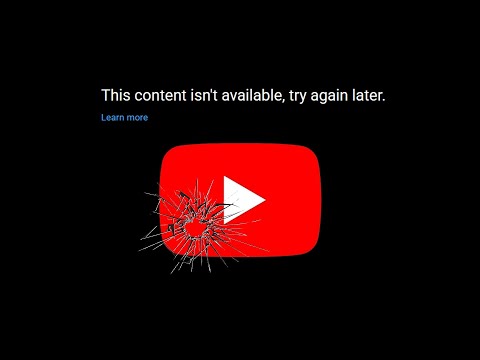
Image source: YouTube
Start With These Quick Fixes to Restore Playback Immediately
Before diving into deep system settings, there are several "low-effort, high-reward" tactics that resolve the majority of playback issues. These methods target temporary glitches in the communication between your device and the YouTube servers.
The "3x Refresh" Rule
It sounds like an old tech myth, but the "3x Refresh" rule is a community-verified solution for temporary server handshake errors. According to Google Support community threads , refreshing the tab exactly three times in quick succession can sometimes bypass a stalled validation check. This works because each refresh requests a new "stream token." If the first two attempts fail due to a minor network hiccup, the third often catches a clean connection.
Testing in Incognito Mode
One of the fastest ways to diagnose the problem is to open the video in a Private or Incognito window. This mode disables most extensions and uses a clean slate for cookies. If the video plays perfectly in Incognito, you know the issue isn't with YouTube's servers or your internet connection—it is likely a specific browser extension or a corrupted cookie in your main profile.
Switching Browsers
If you are using Google Chrome and seeing this error, try opening the same link in Safari, Brave, or Firefox. Different browsers handle scripts and ad-blocking extensions differently. In 2026, many users have found that switching to a browser with a different engine often resolves the "unavailable" flag, as it avoids the specific detection scripts Google has optimized for Chrome.
Checking YouTube Server Status
Sometimes, the problem isn't you—it's them. Before troubleshooting your hardware, check a third-party site like DownDetector to see if there is a global or regional outage. If thousands of other users are reporting the same issue, the best course of action is simply to wait for the platform's engineers to deploy a fix.
Why Your Ad Blocker Is Likely the Main Culprit in 2026
As of early 2026, the primary driver behind the "Content isn't available" message is the escalating conflict between YouTube and ad-blocking software. The platform has moved beyond simple pop-up warnings to more sophisticated playback blocks.
The Evolution of the Ad-Blocker War
The January 2026 escalation marked a significant shift in how YouTube enforces its Terms of Service. Rather than just blocking the ad-blocker, the platform now frequently interrupts the video stream itself if it detects that ad-related scripts are being suppressed. This results in the "unavailable" message, which is essentially a soft-block designed to encourage users to either disable their extensions or subscribe to premium services.
How YouTube Detects Your Extensions
YouTube uses "honey-pot" scripts—small pieces of code that look like ads but are actually detectors. If your ad-blocker prevents these scripts from running, the YouTube player assumes you are using unauthorized software and terminates the video stream. This detection happens in real-time, which is why a video might play for 30 seconds and then suddenly cut to the error screen.
The Ethics and API Conflict
Google’s official stance is that third-party applications and extensions that modify the viewing experience violate their API Services Terms of Service . By blocking ads, these tools prevent creators from earning revenue and the platform from covering hosting costs. Consequently, YouTube has become much more aggressive in flagging any browser environment that appears to be tampering with the standard ad-delivery pipeline.
How to Update uBlock Origin Filters to Bypass the Block
If you prefer to keep using your extensions, you must stay ahead of the platform's updates. uBlock Origin remains a top-rated choice for many, but it requires manual maintenance to stay effective against the 2026 detection scripts.
Step-by-Step Filter Refresh
Follow these steps to ensure your filters are current:
- 1 Open the uBlock Origin Dashboard by clicking the extension icon and then the "gears" icon.
- 2 Navigate to the Filter Lists tab at the top.
- 3 Click the button labeled Purge all caches . This clears out the old, detected rules.
- 4 Click Update now . The extension will download the latest community-made bypass scripts.
Enabling Experimental Filters
Standard filters are often a few days behind YouTube's changes. To get the latest fixes, scroll down in the Filter Lists tab and look for the "uBlock filters – Experimental" checkbox. Enabling this allows you to use cutting-edge scripts that are specifically designed to counter the most recent playback blocks.
The "Shift + Click" Force Update
For power users, a "Shift + Click" on the update icon in the dashboard forces a clean, deep update of every rule in the database. This is often more effective than a standard update if you have been seeing the "content unavailable" message persistently across multiple videos.
Use the "Learn More" Loophole to Force the Video to Load
One of the most interesting workarounds discovered by the community involves a specific sequence of clicks that seems to trick the YouTube player's validation logic. This is often referred to as the "Learn More" loophole.
The Discovery
Users on platforms like Reddit and Android Police noticed that clicking the "Learn More" link—which usually leads to a help page about the error—actually triggers a background refresh of the video's metadata. By interrupting this process, you can sometimes force the video to play.
The Sequence
- Wait for the "Content isn't available" message to appear on the player.
- Click the Learn More button or link directly under the error text.
- As soon as the new page begins to load, immediately hit your browser's Back button.
Why It Works
This action forces the player to re-initialize the stream token. Because you are returning from an official Google help page, the player's security check sometimes "relaxes" or skips the initial ad-blocker detection script, allowing the video to load without the error. While not a permanent fix, it is a highly effective way to watch a specific video when you are in a hurry.
Troubleshooting the Error on Smart TVs and Mobile Apps
The "unavailable" error isn't limited to browsers. It is increasingly common on the official YouTube app for Android, iOS, and various Smart TV platforms like Roku and Fire Stick.
Clearing the App Cache
On mobile devices, corrupted temporary data is a frequent culprit.
- Android Fix
- Go to Settings > Apps > YouTube > Storage and tap Clear Cache . Do not tap "Clear Data" unless you want to be logged out.
- iOS Fix
- Apple doesn't allow direct cache clearing. You must "Offload" the app by going to Settings > General > iPhone Storage > YouTube > Offload App . This removes the app but keeps your data; then, simply reinstall it.
The Smart TV Power Cycle
Simply turning your TV off and on with the remote usually just puts it into "Standby" mode, which doesn't clear the system memory. To truly reset the YouTube app on a Smart TV, you must unplug the power cord from the wall for at least 60 seconds. This forces the TV's operating system to clear its cache and re-establish a fresh connection with YouTube's API.
Updating the YouTube App
YouTube frequently updates its API. If your app version is too old, the handshake between the app and the server will fail, resulting in the "content unavailable" message. Always check the Google Play Store or Apple App Store for pending updates. On Smart TVs, check the "System Update" or "App Store" section to ensure you are running the latest version.
Third-Party App Warnings
If you are using modified clients like the now-defunct "YouTube Vanced" or other third-party players, you are almost certain to see this error. YouTube has implemented aggressive blocks against non-official apps that bypass ads. If you are using one of these, the only reliable fix is to return to the official YouTube app or use a mobile browser with updated filters.
Advanced Technical Fixes for Persistent Playback Errors
If the standard fixes fail, the problem might lie deeper within your browser's rendering engine or your network configuration.
Disabling Hardware Acceleration
Hardware acceleration allows the browser to use your computer's GPU to render videos more efficiently. However, if there is a driver conflict, it can cause the video stream to break, triggering the "unavailable" error.
- Open Chrome Settings.
- Click on System in the left sidebar.
- Toggle off "Use hardware acceleration when available" .
- Relaunch the browser and try the video again.
Checking for Corrupted Browser Data
Sometimes, a single corrupted file in your browser's "Site Data" can cause persistent issues. Instead of clearing your entire history, you can clear data just for YouTube:
- In Chrome, go to Settings > Privacy and security > Site settings > View permissions and data stored across sites .
- Search for "YouTube" and click the trash can icon to clear its specific data.
DNS and VPN Conflicts
A VPN can sometimes cause a mismatch between your account's home region and your current IP address. If YouTube detects you are accessing content from a region where it isn't licensed, or if your VPN's DNS is being flagged as "suspicious," it may trigger the unavailable message. Try disabling your VPN or switching to a different server location to see if playback resumes.
Understanding Account-Level Restrictions and Regional Blocks
Not every "unavailable" message is a technical bug. Sometimes, the platform is intentionally restricting access based on your account settings or location.
Restricted Mode Settings
If you are on a school or work network, an administrator may have enabled Restricted Mode . This setting automatically hides videos that contain potentially mature content. You can check this by clicking your profile icon and looking at the bottom of the menu. If it's "On" and greyed out, you'll need to contact your network administrator to change it.
Regional Licensing Issues
There is a subtle difference between "This content isn't available" and "This video is not available in your country." However, in 2026, YouTube sometimes uses the generic "unavailable" message for regional blocks as well. If a video is blocked in your country due to copyright licensing, a VPN is often the only way to view it, though this may conflict with the ad-blocker detection mentioned earlier.
Account Flags and A/B Testing
YouTube often tests new security features on specific groups of users. This is known as A/B testing. If a video works when you are logged out but fails when you are logged in, your account has likely been flagged for a specific experiment or is being targeted by a new ad-blocker detection script. In this case, using a different account or watching as a guest is a temporary workaround.
Comparison of Error Messages and What They Actually Mean
Identifying the exact wording of the error can help you choose the right troubleshooting path. Use the table below to diagnose your specific issue.
| Error Message | Likely Root Cause | Recommended First Step |
|---|---|---|
| "This content isn't available" | Ad-blocker detection or API violation | Update uBlock filters or disable extensions |
| "Video is private" | Uploader changed privacy settings | None (requires uploader access) |
| "Video is unavailable" | Deleted video or copyright strike | Check if the channel still exists |
| "Playback ID Error" | Local browser cache or DNS issue | Clear browser cache and cookies |
| "Not available in your country" | Regional licensing restrictions | Use a reputable VPN service |
Frequently Asked Questions
Why does YouTube work in Incognito but not my main profile?
This is a classic sign that a browser extension or a specific cookie is interfering with the video player. Incognito mode disables most extensions by default. To fix this, try disabling your extensions one by one in your main profile to identify the culprit. Often, it is an ad-blocker, a "dark mode" extension, or a script manager like Tampermonkey that is triggering YouTube's security filters.
Is YouTube banning accounts for using ad blockers?
As of late 2026, there have been no confirmed reports of permanent account bans solely for using ad blockers. Instead, YouTube uses "playback blocks," where they simply prevent you from watching videos until the ad-blocker is disabled. While it is a significant inconvenience, your account, playlists, and subscriptions remain safe. The platform's goal is to change user behavior, not to lose users entirely.
How do I fix this error on my Roku or Fire Stick?
On Smart TV devices, the most effective fix is a "cold boot." Unplug the device from its power source for 60 seconds. Additionally, ensure the YouTube app is updated to the latest version. If the error persists, try uninstalling the YouTube app, restarting the device, and then reinstalling the app. This clears out any deep-seated cache issues that a simple restart might miss.
Can a slow internet connection cause this specific error?
Generally, no. A slow connection usually results in "Buffering" or the video quality dropping to 144p. The "Content isn't available" message is a specific status code returned by the server, usually indicating a validation failure rather than a bandwidth issue. However, if your connection is so unstable that the security handshake fails, it could theoretically trigger the error, but this is rare compared to ad-blocker issues.
Why did my video stop halfway through with this message?
This happens because YouTube's detection scripts run dynamically. The player may perform a "heartbeat" check every few minutes to ensure the environment is still compliant with its terms. If you have an ad-blocker that updates its rules while you are watching, or if YouTube pushes a script update to your browser mid-video, the playback may be interrupted immediately.
Key Takeaways for Fixing YouTube Playback
Resolving the "content isn't available" error requires a systematic approach to identify whether the issue is local or platform-side.
- Refresh the page three times to clear temporary server handshake glitches.
- Update your ad-blocker filters (Purge Cache and Update) to stay ahead of platform detection.
- Use Incognito Mode to quickly determine if a browser extension is the root cause.
- Try the "Learn More -> Back" trick to force a stream token re-initialization.
- Power cycle Smart TVs by unplugging them for 60 seconds to clear system memory.
- Disable hardware acceleration in browser settings if you experience persistent rendering failures.
- Check for regional or account-level blocks like Restricted Mode or licensing issues.
If these steps do not work, the issue is likely a server-side experiment tied to your specific account ID, and watching as a guest may be your best temporary solution.