Home
Home
How to Test Your Webcam and Fix Common Camera Problems
If your webcam isn't working, follow these three immediate steps to identify the issue:
- Check Permissions: Ensure your browser has access via the pop-up in the address bar.
- Close Competing Apps: Shut down Zoom, Teams, or Skype, as they may have "exclusive access" to the sensor.
- Verify Privacy Settings: Check Windows (Settings > Privacy > Camera) or macOS (System Settings > Security & Privacy) to ensure the master toggle is ON.
For a deep technical scan, use a browser-based webcam test to verify resolution and frame rate.
In an era where remote work and digital learning are standard, a functioning camera is essential. Whether you are preparing for a high-stakes job interview, a proctored exam, or a routine team sync, knowing how to perform a webcam test can save you from technical embarrassment. Most modern issues aren't caused by hardware failure but by software conflicts or privacy restrictions that are easily resolved with the right knowledge.
How to Test Your Webcam Online Right Now
Testing your camera online is a highly efficient way to verify that your hardware is communicating correctly with your operating system and browser. Most modern testing tools utilize the
getUserMedia
API, which allows websites to request a temporary stream from your camera without requiring any software installation.
To begin a test, follow these steps:
- Navigate to a reputable testing site like Webcam Mic Test .
- Locate the "Check My Webcam" or "Start Test" button.
- The Permission Prompt: A small window will appear near your browser's address bar. You must click "Allow" to grant the site temporary access.
- View the Stream: If your camera is working, you should see your live video feed on the screen immediately.
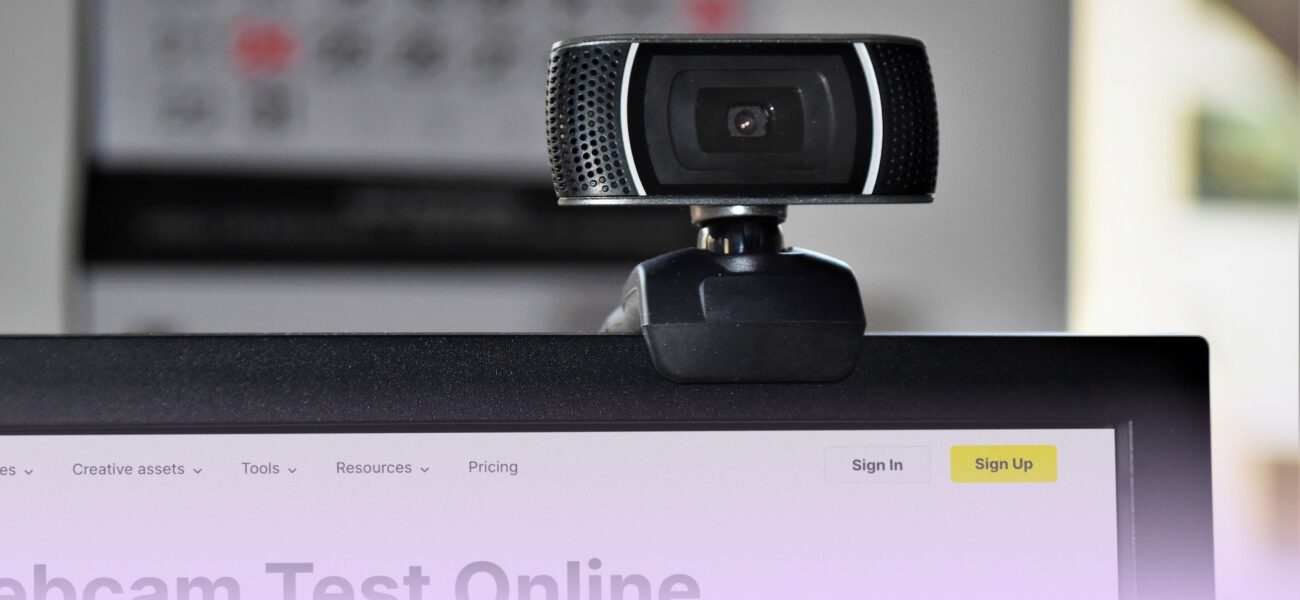
Image source: Wave.video
Privacy is a common concern when using online tools. According to AddPipe , reputable testing platforms process the video stream locally on your device (client-side). This means the video data is never uploaded to a server or recorded, ensuring your privacy remains intact while you diagnose technical issues.
What Do Your Webcam Test Results Actually Mean?
A successful webcam test provides more than just a video feed; it offers a technical snapshot of your camera's capabilities. Understanding these metrics helps you determine if your hardware is performing at its intended level or if it is being throttled by system settings.
Understanding Resolution and Pixel Density
Resolution refers to the number of pixels that make up the image. A higher resolution generally results in a clearer, sharper picture. Common standards include:
- 720p (HD): 1280 x 720 pixels. This is the standard for most integrated laptop cameras.
- 1080p (Full HD): 1920 x 1080 pixels. Widely regarded as a top choice for professional video calls.
- 4K (UHD): 3840 x 2160 pixels. Offers exceptional clarity but requires significant bandwidth.
If your 1080p camera is only showing 720p in a test, it may be due to a USB 2.0 connection limitation or browser settings that favor performance over quality.
The Role of Frame Rate (FPS) in Video Quality
Frame Rate, measured in Frames Per Second (FPS), determines how smooth your video appears. A standard video call typically runs at 30 FPS. If your test shows a drop to 15 FPS or lower, your video will appear "choppy" or laggy. According to OnlineMicTest , low FPS is frequently caused by poor lighting. When a sensor doesn't receive enough light, it increases the exposure time for each frame, which naturally lowers the total number of frames captured per second.
| Resolution Name | Pixel Count | Aspect Ratio | Recommended Use |
|---|---|---|---|
| VGA | 640 x 480 | 4:3 | Legacy systems, low bandwidth |
| HD | 1280 x 720 | 16:9 | Standard video conferencing |
| Full HD | 1920 x 1080 | 16:9 | Professional streaming & recording |
| 4K UHD | 3840 x 2160 | 16:9 | High-end content creation |
Why Is My Webcam Showing a Black Screen?
The "black screen" is one of the most frustrating issues users face. It indicates that the system recognizes a camera exists, but it cannot retrieve a visual signal. This can happen for several reasons, ranging from physical blocks to software deadlocks.
Physical Obstructions and Privacy Shutters
Before diving into software fixes, check the hardware. Many modern laptops and external webcams feature physical privacy shutters. These are small plastic sliders that cover the lens. It is surprisingly common for users to forget the shutter is closed, leading to a perfectly functioning camera that only displays black. Additionally, ensure the lens is clean; a smudge of oil or dust can significantly degrade the image quality even if it doesn't block it entirely.
The Exclusive Access Conflict
Webcams are generally designed to be used by one application at a time. If you have Zoom open in the background, it may "lock" the camera sensor. When you then try to perform a webcam test in Chrome, the browser will see a black screen because it cannot wrest control away from Zoom. To fix this, close all applications that might use the camera—including Teams, Skype, Discord, and even browser tabs with active video calls—and then refresh your test page.
How to Fix Browser Permission Issues
Even if your hardware is perfect, your browser acts as a gatekeeper. If you accidentally clicked "Block" when the permission pop-up appeared, the website will never be able to access your feed. Each browser handles these permissions slightly differently.
- Google Chrome
-
Click the lock icon to the left of the URL in the address bar. Ensure the "Camera" toggle is set to "Allow." You can also manage all site permissions by navigating to
chrome://settings/content/camera. - Mozilla Firefox
-
Click the camera icon in the address bar to see active permissions. To reset them, go to
about:preferences#privacyand scroll down to the "Permissions" section. - Apple Safari
-
Go to
Settings for [Website Name]by right-clicking the address bar, or navigate toSettings > Websites > Camerato manage permissions globally.
How to Change System Privacy Settings on Windows and Mac
In recent years, both Microsoft and Apple have introduced OS-level privacy toggles that can override browser and app settings. If your camera works in the built-in "Camera" app but fails in every browser, a system-level block is the likely culprit.
Windows 10 and 11 Privacy Path
Windows users should follow these steps to ensure the OS isn't blocking access:
- Open the Start Menu and select Settings (the gear icon).
- Navigate to Privacy & Security (or just Privacy in Windows 10).
- Under "App permissions," click on Camera .
- Ensure that "Camera access" is toggled On .
- Scroll down to "Let desktop apps access your camera" and ensure that toggle is also On . This is critical for browsers like Chrome and Firefox.
macOS Privacy and Security
Apple's security model is quite strict. To grant access on a Mac:
- Click the Apple Menu and select System Settings (or System Preferences).
- Go to Privacy & Security .
- Select Camera from the list on the right.
- Ensure the toggle next to your browser (e.g., Safari, Chrome) is switched On . You may need to restart the browser for changes to take effect.
How to Look Professional on Your Next Video Call
Once you have confirmed your camera is working, the next step is optimization. A high-quality image isn't just about the hardware; it's about how you use it. Professionalism in video calls is often a result of simple environmental adjustments.
"Lighting is the single most important factor in webcam quality. Even a top-tier 4K camera will look grainy and laggy in a dark room."
To improve your appearance, consider the following techniques:
- The Rule of Thirds: Position your camera so that your eyes are roughly one-third of the way down from the top of the frame. This creates a balanced, natural look that mimics eye contact.
- Front-Facing Light: Always have your primary light source in front of you, not behind you. Sitting with a window at your back will turn you into a dark silhouette.
- Eye Level: Place your laptop on a stand or a stack of books so the camera is at eye level. Looking down into a camera is generally unflattering and creates a "looming" effect.
- Background Depth: Try to sit a few feet away from the wall behind you. This creates a sense of depth and helps the camera's autofocus stay locked on your face rather than the background pattern.
Why Does My Camera Work Here but Not in Zoom?
It is a common paradox: your webcam passes an online test perfectly, but when you join a Zoom or Microsoft Teams meeting, the video fails. This usually points to an application-specific setting or a driver conflict.
First, check the internal settings of the app. In Zoom, go to
Settings > Video
and ensure the correct camera is selected in the dropdown menu. Sometimes, the app defaults to a "Virtual Camera" or an integrated sensor instead of your high-quality external USB camera.
Second, consider proctored exam software like ProctorU. These applications often use aggressive security measures to prevent cheating, which can include disabling certain drivers or blocking virtual camera software. If you are using a tool like Loom to record your screen while testing, the exam software might flag this as a conflict. Always ensure you have a "clean" hardware signal by disabling all background recording or filtering software before starting a proctored session.
Frequently Asked Questions
Is it safe to test my webcam online?
Yes, provided you use a reputable site. Modern browsers use the
getUserMedia
API, which ensures the video stream is processed locally on your computer. The data is not sent to a server, so your privacy is maintained. Always look for the "HTTPS" padlock in the address bar to ensure the site is secure.
Why is my 1080p webcam looking grainy?
Graininess, or "noise," is almost always a result of low light. Webcam sensors are very small and struggle to capture detail in dark environments. To compensate, the camera increases its digital gain, which introduces grain. Improving your ambient lighting is the most effective way to sharpen the image.
How do I test my webcam on Windows 11 without a website?
Windows 11 has a built-in "Camera" app. Simply click the Start button, type "Camera," and open the application. If you see yourself, your hardware and OS-level drivers are working correctly. This is a great way to rule out browser-specific issues.
Can I use my phone as a webcam?
Yes, many users find that their smartphone cameras offer significantly better quality than integrated laptop webcams. You can use apps like Camo or EpocCam, or if you are on a Mac with an iPhone, you can use the built-in "Continuity Camera" feature which works wirelessly.
What is the best FPS for a video call?
While 60 FPS is popular for gaming, 30 FPS is the standard and highly recommended frame rate for video conferencing. It provides a natural look without requiring excessive bandwidth. Most professional platforms like Zoom and Teams are optimized for 30 FPS.
The Bottom Line
Testing and troubleshooting your webcam doesn't have to be a technical chore. By following a systematic approach, you can resolve most issues in minutes.
- Start with the basics: Check for physical shutters and ensure the USB cable is firmly seated.
- Grant permissions: Always look for the browser's "Allow" prompt when using online testing tools.
- Manage conflicts: Close background apps like Zoom or Teams that might be hogging the camera sensor.
- Check OS settings: Verify that Windows or macOS hasn't disabled camera access at the system level.
- Optimize lighting: Boost your ambient light to improve frame rate and reduce image grain.
- Update drivers: Use your operating system's built-in update tool to ensure you have the latest hardware support.
If you have followed all these steps and your camera still fails to show a picture in both the OS camera app and online tests, it may be time to consider a hardware replacement. A high-quality external USB webcam ranks among the top upgrades for any remote professional.
Take a moment now to open your system's privacy settings and verify which apps currently have permission to access your camera.