Home
Home
How to Troubleshoot Hayward OmniLogic Systems and Fix Common Error Codes
Download this Guide as a PDFIf your Hayward OmniLogic system is malfunctioning, start with these three steps to identify the root cause:
Dealing with a "down" pool system is a significant frustration for any homeowner. The Hayward OmniLogic is a sophisticated automation platform, but its complexity means that when things go wrong, the fix isn't always obvious. This resource serves as a technical companion to the official OmniLogic Operation Manual , providing deeper insights into the architecture of the Main System Processor (MSP) and the Main Panel Processor (MPP).
What to Do When Your OmniLogic Screen Is Blank or Not Responding
A blank screen is one of the most common issues reported by pool owners. Before assuming the board is dead, it is essential to understand the power distribution within the OmniLogic enclosure. While the subpanel itself is typically rated for 100A and 240V service, the electronics that run the automation are far more delicate.
If the screen is blank, your first task is the "Dead Front" safety check. After turning off the main breaker, remove the front panel to expose the internal components. Check the dedicated 5A breaker inside the panel. If it has tripped, there may be a short in one of the low-voltage components, such as a sensor or the communication bus.
Checking the Dedicated 120V Circuit and Ribbon Cables
If the breaker is on but the screen remains dark, the issue often lies in the physical connection between the display and the main board. The OmniLogic uses a specific ribbon cable, labeled D1 , to transmit data and power to the touchscreen MSP. Over time, vibration or thermal expansion can cause this cable to seat improperly.
- Power Down: Turn off all power to the pool pad at the main house breaker.
- Inspect D1: Locate the wide ribbon cable connecting the back of the display to the top of the main board. Unplug it and inspect the pins for corrosion.
- Reseat: Firmly press the cable back into the socket until it clicks or seats fully.
- Check A1: Ensure the Ethernet cable (A1) is also secure, as this handles the communication between the processor and the network bridge.
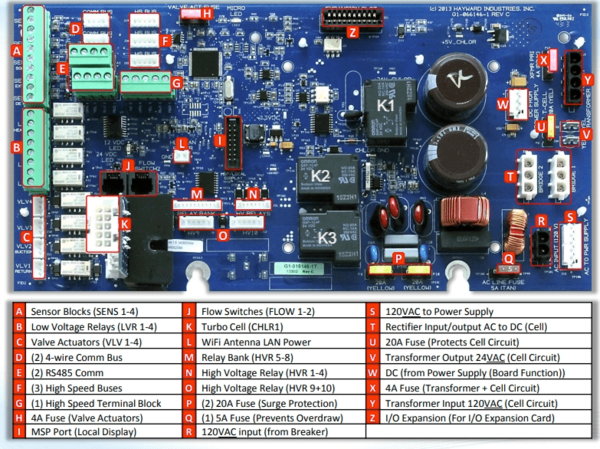
Image source: Trouble Free Pool
How to Resolve MSP Not Found and Wi-Fi Connectivity Issues
The "MSP Not Found" error is a common pain point that indicates the Hayward app cannot communicate with your local controller. This is rarely a failure of the controller itself and is more often a breakdown in the network bridge. The OmniLogic typically uses the HLWLAN bridge to connect to your home router.
To diagnose this, you must look at the LEDs on the HLWLAN bridge. According to the Hayward Network Troubleshooting Guide , the bridge has four critical lights: PWR (Power), LAN (Local Area Network), WLAN (Wireless Network), and Signal. If the PWR light is off, the bridge isn't receiving Power over Ethernet (PoE) from the main board. If the Signal light is blinking or off, the bridge has lost its connection to your router.
- Reboot the home router and wait 10 minutes.
- Check the Ethernet cable between the MSP and the bridge.
- Ensure the bridge is mounted at least 6 feet off the ground.
- Assign a Static IP to the OmniLogic in your router settings.
- Ensure your Wi-Fi is broadcasting on 2.4GHz (5GHz is often unstable for pool equipment).
- Update the HLWLAN firmware via the MSP USB port.
Using a Mobile Hotspot to Test the HLWLAN Bridge
One of the most effective diagnostic techniques used by field technicians is the "Mobile Hotspot Trick." This allows you to determine if the connectivity issue is caused by the Hayward hardware or your home network environment. By bypassing your router, you eliminate variables like firewalls, signal interference, and ISP outages.
To perform this test, enable the hotspot on your smartphone. On the OmniLogic touchscreen, go to Configuration > Network > Wireless and search for your phone's SSID. If the system connects to the hotspot and the app begins working, your HLWLAN bridge is functioning correctly, and the problem lies with your home router's range or settings.
Understanding OmniLogic Error Codes and Screen Color Meanings
The OmniLogic user interface is designed to provide immediate visual feedback through a color-coded background system. Understanding these colors can save you hours of manual searching. As noted in technical resources from Pool Dial , the system uses three primary states:
What Red Yellow and Blue Screen Backgrounds Actually Mean
- Blue or Gray: The system is in a normal operating state. All schedules are running, and no faults are detected.
- Yellow: This is a Warning state. The system is still running, but something requires attention. Common causes include low salt levels (below 2700 PPM) or a scheduled maintenance reminder.
- Red: This is a Critical Fault state. The system may have shut down specific components (like the heater or pump) to prevent damage. This usually triggers an error code in the message center.
| Error Code / Message | Likely Cause | Recommended Action |
|---|---|---|
| Low Flow | Dirty filter, closed valve, or failed flow switch. | Clean filter; check flow switch for debris. |
| MPP Comm Loss | Wiring fault between the board and display. | Inspect A1 and D1 cables; check 5A breaker. |
| Bridge Comm Loss | HLWLAN bridge is disconnected or powered down. | Check PoE power; verify bridge LEDs. |
| High Salt / Low Salt | Salt level outside 2700–3400 PPM range. | Test water manually; adjust salt levels. |
| Smart Device Comm Loss | MSP cannot reach Hayward cloud servers. | Check internet connection; perform hotspot test. |
Advanced Diagnostics for Variable Speed Pumps and RS-485 Communication
Variable Speed Pumps (VSPs) like the TriStar or EcoStar communicate with the OmniLogic via an RS-485 data bus. This is a "smart" connection that allows the controller to dictate precise RPMs. However, this communication relies on a specific logic known as the Hayward Unique Address (HUA) .
If your pump is powered but not responding to the OmniLogic, it may have lost its HUA assignment. This often happens after a firmware update or a significant power surge. To fix this, you must enter the configuration menu and "find" the pump on the bus. Ensure the pump's onboard controller is set to "Remote Control Mode"; if the pump is trying to run its own internal schedule, it will ignore commands from the OmniLogic.
Troubleshooting the Hayward Unique Address for VSP Pumps
Another common "ghost bug" involves flow monitoring. If you have a VSP, the OmniLogic monitors the flow switch to ensure water is moving before engaging the heater or salt cell. If the flow switch fails to close within 15–20 minutes of the pump starting, the system will kill the pump power as a safety precaution. To the user, this looks like a "scheduling error" because the pump simply stops. Always check the flow switch's 10K ohm thermistor if you experience intermittent shutdowns.
Image source: PoolDial
Recovering Your System After a Power Surge or Storm
Lightning strikes and power surges are the leading causes of automation failure. Interestingly, a surge doesn't always kill the entire board. Users on Trouble Free Pool have noted cases where the MSP touchscreen remains powered, but the high-voltage relays for the pumps and blowers fail to engage.
How to Perform a Safe Firmware Update via USB
While the OmniLogic supports over-the-air (OTA) updates via Wi-Fi, using a USB drive is a more stable method for troubleshooting. Before you begin, you must perform a Pre-Update Backup . Go to Service Mode > Backup Configuration and save your settings to a FAT32-formatted USB drive. This ensures that if the update fails, you won't have to re-program your entire pool schedule and relay assignments from scratch.
Insert the USB drive into the B1 port located on the underside of the MSP display. Navigate to System Info > Upgrade and select the file from the USB. Do not turn off the power during this process. A typical update takes 5–10 minutes. Once complete, the system will reboot. If the screen remains blank for more than 15 minutes, perform a hard reset by flipping the 5A internal breaker.
Frequently Asked Questions
Final Thoughts and Key Takeaways
Maintaining a Hayward OmniLogic system requires a balance of basic maintenance and technical oversight. By following the diagnostic steps outlined in this guide, you can resolve the majority of common automation issues without a service call.
- Verify 120V power to the MPP board before assuming a hardware failure.
- Check cable seating for the A1 Ethernet and D1 Ribbon cables to fix blank screens.
- Use the Hotspot test to isolate Wi-Fi bridge issues from home network problems.
- Monitor screen colors (Blue, Yellow, Red) for instant status diagnostics.
- Back up configuration to a USB drive before any firmware updates or major changes.
- Target 3200 PPM for salt levels to ensure consistent chlorination.
- Test high-voltage relays with a multimeter after major storms or power surges.
For the most reliable results, always ensure your firmware is up to date and your network bridge has a clear line of sight to your home router.
All trademarks, copyrighted content, and quoted material referenced in this article belong to their respective owners. Brief excerpts are used under fair use (17 U.S.C. § 107) for purposes of commentary, criticism, and informational reporting. This article is not affiliated with or endorsed by Hayward Industries, Inc.
Print this Guide to PDF