Home
Home
How to Use Dconf Editor to Safely Modify Hidden Linux Settings
Dconf Editor
is a graphical tool used to access the low-level configuration database of the GNOME desktop and related applications. It allows users to modify "hidden" settings that are not available in the standard System Settings menu. To use it safely, always perform a backup using
dconf dump / > backup.txt
before making changes. It is widely considered a top choice for power users who need granular control over their Linux environment.
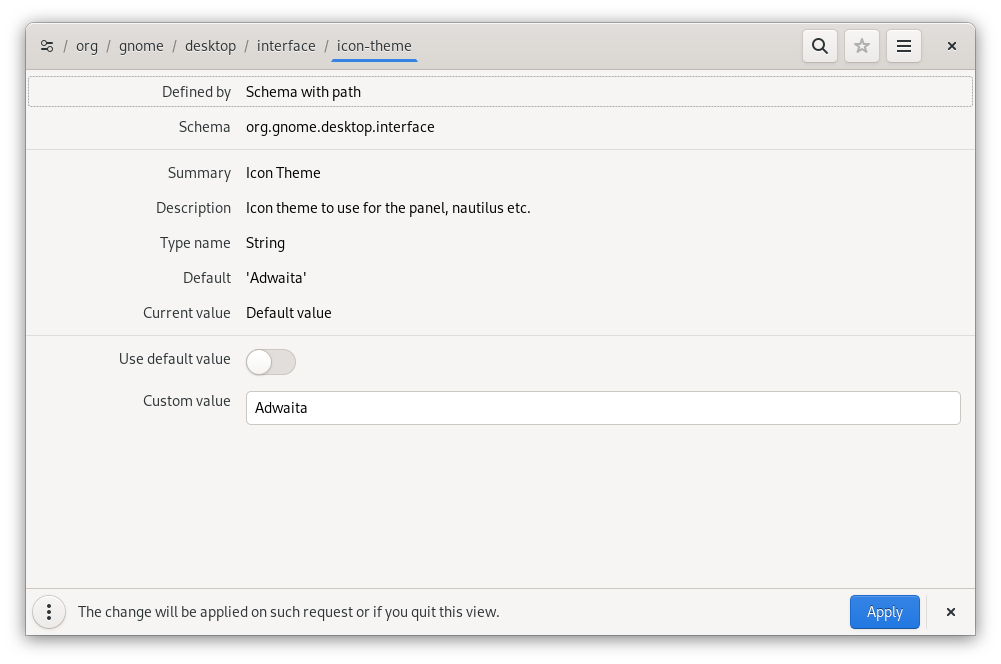
Image source: Apps for GNOME
Understanding the Role of Dconf in Modern Linux Environments
In the ecosystem of Linux desktop environments, particularly those based on GTK like GNOME, MATE, and Cinnamon, managing user preferences requires a robust backend. This is where dconf comes into play. It is a low-level configuration system designed to store settings in a structured, binary format. While casual users interact with the "Settings" app, power users often turn to Dconf Editor to tweak behaviors that developers have intentionally kept out of the primary user interface to maintain simplicity.
Technically, dconf is often compared to the Windows Registry because it uses a key-value pair system organized into a hierarchy. However, unlike the often-criticized Windows Registry, dconf is built for speed and efficiency. According to technical documentation on Wikipedia , dconf uses the GVDB (GVariant Database) format. This binary format is notably innovative because it allows for near-instantaneous reads with zero system calls or context switches in many scenarios, making it a highly impactful component of system performance.
The Relationship Between Dconf and GSettings
It is important to distinguish between dconf and GSettings. GSettings is the high-level API that developers use to read and write settings in their applications. Dconf is the actual backend that stores that data on disk (typically located at
~/.config/dconf/user
). On systems where dconf is not available, GSettings can use other backends, but on modern Linux distributions, dconf stands out as the primary storage mechanism. Using Dconf Editor allows you to bypass the application's UI and talk directly to this backend.
Installing Dconf Editor Across Major Linux Distributions
Dconf Editor is rarely installed by default, but it is available in the official repositories of almost every major Linux distribution. As of late 2025 and into 2026, the package name has standardized to
dconf-editor
, replacing the older
dconf-tools
package which is now considered deprecated in most modern environments.
Use the standard APT package manager to install the editor quickly.
sudo apt install dconf-editor
Fedora users can find the tool in the DNF repositories.
sudo dnf install dconf-editor
Arch users can install it directly from the extra repository.
sudo pacman -S dconf-editor
Installing via Flatpak
For users who prefer sandboxed applications or are using immutable distributions like Fedora Silverblue, Dconf Editor is available on Flathub . It is important to note that the Flatpak version carries a "Medium Risk" rating because it requires access to the system bus to modify settings. However, for most users, this is a secure and convenient way to manage the tool without cluttering the base system.
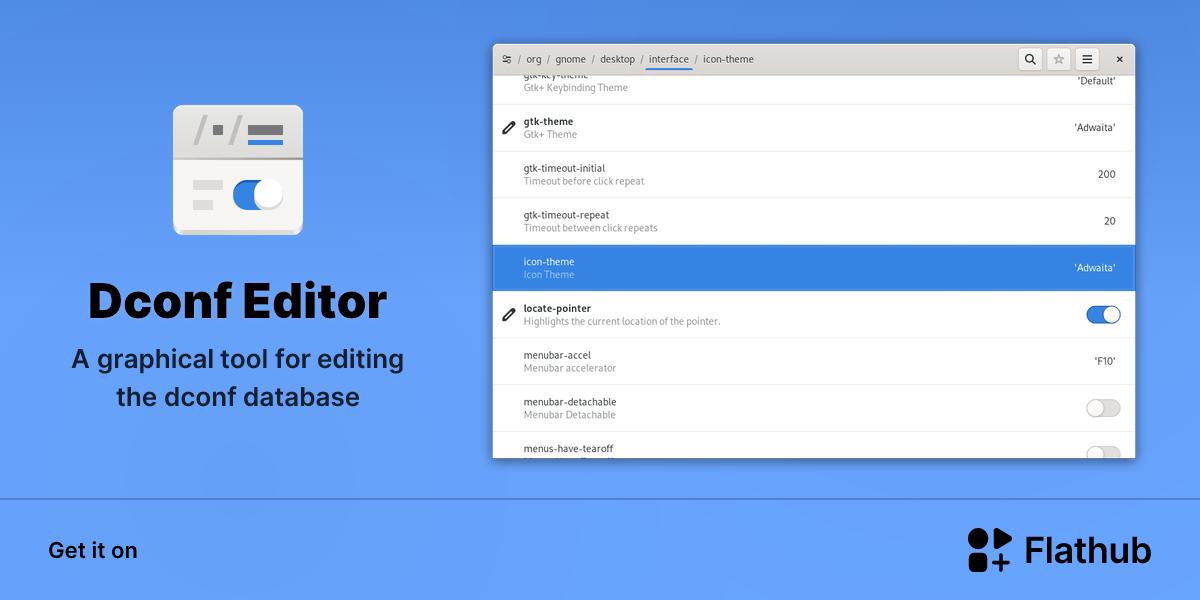
Image source: Flathub
Creating a Safety Net with Configuration Backups
Before you begin clicking through the tree of settings, you must establish a recovery plan. Because Dconf Editor writes changes in real-time, there is no "Undo" button for the entire session. If you accidentally toggle a setting that breaks your window manager, you need a way to revert to a known good state.
/org/gnome/settings-daemon/
path can lead to input device failure or desktop crashes. Always have a terminal backup ready before exploring these paths.
-
Export your current settings:
Open your terminal and run the command
dconf dump / > desktop-backup.txt. This creates a plain-text file containing every custom setting currently stored in your database. -
Verify the backup:
Open the
desktop-backup.txtfile with a text editor. You should see a list of paths followed by the keys and values you have modified in the past. - Perform your edits: Open Dconf Editor and make your desired changes. If the system behaves unexpectedly, you can proceed to the next step.
-
Restore if necessary:
If you need to revert, run
dconf load / < desktop-backup.txt. This will overwrite your current database with the values from your backup file.
Mastering the Dconf Hierarchy and Navigation
Navigating Dconf Editor can feel overwhelming due to the sheer volume of keys. The database is organized into a tree structure that follows a specific logic. Understanding this hierarchy is the most effective way to find what you need without getting lost.
Schemas, Keys, and Values
The hierarchy is divided into three main components:
-
Schemas:
These are the "folders" in the tree, such as
/org/gnome/desktop/interface/. They group related settings together. -
Keys:
These are the individual settings within a schema, such as
cursor-themeorfont-name. - Values: This is the data assigned to a key. Values can be Booleans (True/False), Integers, Strings, or even complex Arrays.
To find a setting quickly, use the search icon at the top of the window or press
Ctrl+F
. This feature is often overlooked but is a significant step forward in usability compared to manual browsing. When you select a key, Dconf Editor provides a description of what the key does, its default value, and the allowed range of values. This metadata is pulled from the GSettings schemas installed on your system.
Practical Hidden Settings to Enhance Your Desktop Experience
While there are thousands of keys, a few stand out as a top choice for users looking to improve their daily workflow. These settings are often missing from the standard GNOME Settings app but are easily accessible via Dconf Editor.
| Feature | Dconf Path | Benefit |
|---|---|---|
| Show Date in Clock |
/org/gnome/desktop/interface/clock-show-date
|
Adds the current date to the top bar clock. |
| Animation Speed |
/org/gnome/desktop/interface/enable-animations
|
Disabling animations can make older hardware feel faster. |
| Button Layout |
/org/gnome/desktop/wm/preferences/button-layout
|
Move window controls (min/max/close) to the left or right. |
| Tap-to-Click |
/org/gnome/desktop/peripherals/touchpad/tap-to-click
|
Enable touchpad tapping if the UI toggle is missing. |
For example, if you are a user who prefers a minimalist interface, you might want to disable the "hot corner" that triggers the activities overview. You can find this at
/org/gnome/desktop/interface/enable-hot-corner
. Toggling this to "False" provides a more traditional desktop experience without the accidental triggers.
Resolving Issues When Settings Fail to Persist
A common frustration among Linux users—particularly those on Zorin OS or Cinnamon—is that changes made in Dconf Editor sometimes revert to their default values after a reboot. This is rarely a bug in dconf itself; rather, it is usually caused by a higher-level desktop daemon overriding the low-level key.
In environments like Zorin, the "Zorin Appearance" tool manages many of the same keys that Dconf Editor accesses. When the system boots, the appearance daemon checks its own configuration file and applies those settings to dconf, effectively overwriting any manual changes you made. To fix this, you must identify which desktop service is managing the key. According to community troubleshooting guides, the most effective way to ensure persistence is to use the
gsettings set
command in a startup script, which applies the change after the desktop environment has fully loaded.
Bridging the Gap Between GUI Discovery and CLI Automation
While Dconf Editor is excellent for discovering what is possible, the command-line tool (
dconf
) is a top-tier option for automation and deployment. A highly effective workflow involves using the GUI to find the exact path and key name, then using the CLI to apply that setting across multiple machines or in a fresh installation script.
Using the Dconf CLI
The CLI tool is straightforward and follows a predictable syntax. Here are the most common commands you will use:
# Read a specific value
dconf read /org/gnome/desktop/interface/cursor-theme

# Write a new value (strings must be in quotes)
dconf write /org/gnome/desktop/interface/cursor-theme "'Adwaita'"

# Reset a key to its default value
dconf reset /org/gnome/desktop/interface/cursor-theme

# List all keys in a sub-path
dconf list /org/gnome/desktop/interface/
Many users find that combining these tools provides the most effective way to manage a Linux system. You get the visual feedback of the GUI for exploration and the speed of the CLI for implementation. This dual-approach sets a high standard for system administration efficiency.
Advanced Configuration Management for System Administrators
For those managing labs, kiosks, or corporate workstations, dconf offers features that go far beyond simple desktop tweaks. One of the most capable features is the ability to set Mandatory Keys . These are settings that the end-user cannot change, even if they have access to Dconf Editor.
System administrators can create a "profile" in
/etc/dconf/profile/user
and then define settings in
/etc/dconf/db/local.d/
. After running
dconf update
, these settings are locked. This is a significant advancement for maintaining a consistent user experience across a large fleet of machines. Additionally, dconf supports
Configuration Stacking
, where settings can be layered from different sources (site-wide, department-wide, and user-specific), with higher layers overriding lower ones unless a key is marked as mandatory.
This technical architecture is detailed extensively in the official GNOME documentation , which highlights how dconf uses D-Bus to notify applications of changes in real-time. This ensures that when a setting is changed, the application reacts immediately without needing a restart.
Key Takeaways for Using Dconf Editor
Dconf Editor is a highly capable tool that provides access to the inner workings of your Linux desktop. To use it effectively, keep these points in mind:
-
Always back up
your settings using the
dconf dumpcommand before making any changes. - Use the search function (Ctrl+F) to navigate the complex tree hierarchy efficiently.
- Understand the hierarchy of Schemas, Keys, and Values to avoid modifying the wrong settings.
- Check for overrides if your settings revert after a reboot, as desktop daemons often take precedence.
- Leverage the CLI for repetitive tasks or when deploying settings to multiple machines.
- Consult official documentation when exploring unfamiliar paths to prevent system instability.
Start by backing up your current configuration today so you can explore hidden settings with complete peace of mind.
Frequently Asked Questions
- Is Dconf Editor safe for beginners to use?
-
While Dconf Editor is a highly capable tool, it is generally recommended for users who have a basic understanding of how Linux configurations work. Because it writes changes directly to the database without a confirmation prompt, a single wrong click can alter your desktop behavior. However, as long as you maintain a recent backup using the
dconf dumpcommand, the risk is manageable even for those new to the platform. - What is the difference between dconf and the Windows Registry?
- Conceptually, they are similar as both are centralized key-value databases for system and application settings. However, dconf is technically distinct; it uses the GVDB binary format which is optimized for high-speed reads and low memory overhead. Furthermore, dconf is primarily focused on desktop environment and application preferences, whereas the Windows Registry handles everything from hardware drivers to kernel-level configurations.
- Can I use Dconf Editor on KDE Plasma or XFCE?
-
Dconf is the native configuration system for GNOME and GTK-based environments. While you can install Dconf Editor on KDE Plasma, it will only affect GTK applications (like Firefox or GIMP) and will not change KDE's native settings, which are stored in text-based
.rcfiles. For XFCE, which uses Xfconf, Dconf Editor has limited utility except for specific GNOME-integrated components. - How do I reset my entire GNOME desktop to factory defaults?
-
If you have made too many changes and want to start fresh, you can use the command
dconf reset -f /. This will recursively reset every key in the dconf database to its default value. Be careful, as this will remove all your customizations, including wallpaper, extensions, and keyboard shortcuts. It is one of the most effective ways to fix a heavily misconfigured desktop. - Where is the actual dconf database file stored on my hard drive?
-
For individual users, the database is a single binary file located at
~/.config/dconf/user. You should not attempt to edit this file directly with a text editor, as it is in a binary format. Always use Dconf Editor or thedconfCLI tool to interact with it to avoid corrupting the database.
Final Thoughts: Dconf Editor remains a top-tier resource for anyone looking to truly own their Linux experience. By following the safety protocols outlined here, you can unlock a level of customization that few other operating systems can match.