Home
Home
Why Ocenaudio Audio Editor Ranks Among the Top Free Alternatives to Audacity in 2026
Ocenaudio is a powerful, cross-platform audio editor designed for users who prioritize speed and a modern interface over complex multi-track mixing. Developed by the LINSE research group, it features a unique background processing architecture that prevents the software from freezing during heavy tasks. It is widely considered a top-tier choice for single-track editing, podcast cleanup, and scientific bioacoustic research due to its spectral analysis tools and VST2 support.
Understanding Ocenaudio and Its Intended Audience
Ocenaudio stands out as a functional, easy-to-use audio editor that bridges the gap between overly simplistic tools and intimidating Digital Audio Workstations (DAWs). Unlike many open-source projects that struggle with interface design, Ocenaudio offers a clean, streamlined experience that feels native to Windows, macOS, and Linux alike. This consistency is achieved through the Ocen Framework , a proprietary library developed to simplify the development of audio manipulation software across different platforms.
The software traces its origins to the Laboratório de Instrumentação em Sistemas Eletrônicos (LINSE) at the Federal University of Santa Catarina in Brazil. Because it was born in an academic environment, the tool places a high premium on precision and technical accuracy. This makes it a popular choice for researchers who need to analyze frequencies or prepare audio for scientific databases. However, its simplicity has also made it a favorite among podcasters and voice-over artists who need to perform quick edits without the steep learning curve of professional suites.
While it may lack the multi-track capabilities of Audacity, it compensates with a more responsive user interface and a "destructive" editing philosophy that favors speed. For users who primarily work with one or two tracks at a time—such as cleaning up a voice recording or trimming a field recording—Ocenaudio often provides a more efficient workflow than its competitors.
How Background Processing Architecture Enhances Workflow Speed
One of the most significant advancements in Ocenaudio is its background processing engine. In many traditional audio editors, performing a time-consuming task—such as applying a complex filter, saving a massive 2GB file, or exporting to a different format—results in the software "locking up." You are often greeted with a progress bar that prevents you from interacting with the waveform until the task is complete.
Ocenaudio handles these operations differently. By utilizing the Ocen Framework, the software offloads these heavy tasks to the background. This means that while a large file is saving, you can continue to edit other parts of the audio or even open a separate file to begin a new project. This responsive UI is a major advantage for professionals working under tight deadlines, such as news editors or daily podcasters.
According to technical assessments of the software's core architecture, this non-blocking approach significantly reduces "idle time" for the user. In a real-world scenario, a user editing a two-hour podcast episode can apply a normalization effect and immediately move to the next section of the track to perform cuts, rather than waiting for the software to recalculate the entire waveform. This makes Ocenaudio a top-performing option for long-form audio content.
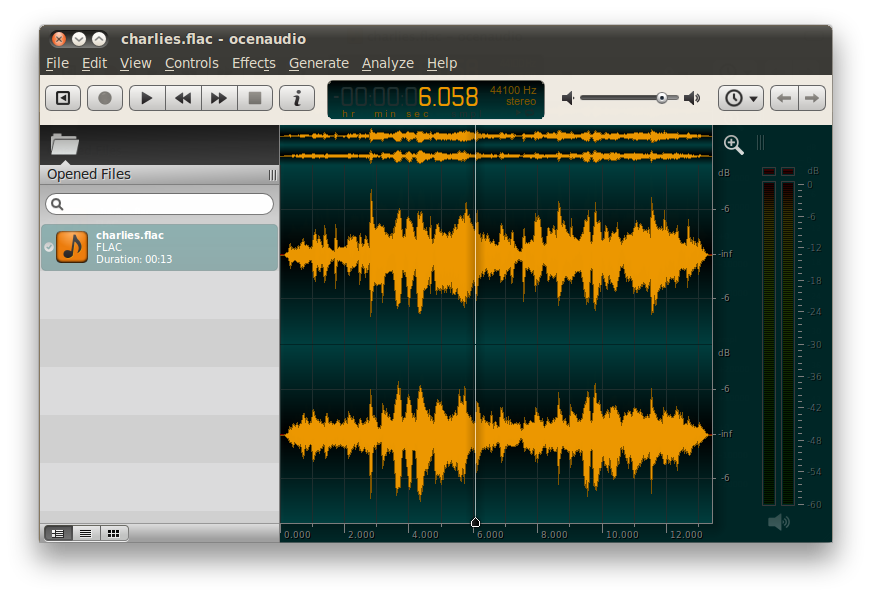
Image source: www.ocenaudio.com
Downloading and Installing Ocenaudio Across Different Operating Systems
Ocenaudio is remarkably accessible, offering native support for a wide range of hardware. To ensure you are getting the most stable version, it is highly recommended to download the software directly from the official Ocenaudio website .
Windows and macOS Optimization
For Windows users, Ocenaudio provides both standard installers (.exe) and portable versions. The portable version is particularly useful for technicians who need a reliable editor on a USB drive for field work. On macOS, the developers have been proactive in supporting modern hardware. Ocenaudio offers native binaries for both Intel-based Macs and Apple Silicon (M1, M2, and M3 chips), ensuring that the software leverages the full power of the latest hardware without relying on Rosetta 2 translation.
Linux Best Practices and Stability
Linux support is extensive, with official packages for Debian, Ubuntu, CentOS, Fedora, and openSUSE. However, community wisdom from the Manjaro and MX Linux forums suggests a specific approach for the best experience:
- Use Official Repositories: Whenever possible, use the .deb or .rpm packages provided by the developers rather than third-party forks. This ensures you receive the latest updates, which were released as recently as early 2026.
- Check Dependencies: Ensure your system has the necessary ALSA or PulseAudio libraries configured, as Ocenaudio relies on these for low-latency playback.
- Avoid Flatpaks for VSTs: If you plan on using VST plugins, the native package often handles plugin paths more reliably than sandboxed versions like Flatpak or Snap.
Navigating the Destructive Editing Philosophy Safely
It is vital for new users to understand that Ocenaudio is a destructive audio editor . In the world of audio production, "destructive" means that when you apply an effect or delete a segment and hit "Save," the software overwrites the original data on your hard drive. This is in contrast to "non-destructive" editors (like most modern DAWs), which keep the original file intact and apply changes as a layer of instructions.
While this sounds risky, it is a significant step forward for speed. Destructive editing requires less RAM and processing power because the software doesn't have to keep track of a complex web of real-time instructions. To stay safe, follow these expert-recommended steps:
- Create a Working Copy: Never open your only master recording in Ocenaudio. Always copy the file to a "Working" folder first.
- Leverage the Undo Stack: Ocenaudio maintains a robust undo history during your current session. You can revert changes as long as the program remains open.
- Save Incremental Versions: If you are performing complex restoration, save files as "Project_V1," "Project_V2," etc.
Mastering the Multi-Selection Feature for Efficient Editing
Perhaps the most innovative feature in Ocenaudio is its multi-selection engine. Most editors only allow you to select one continuous block of audio at a time. Ocenaudio allows you to select multiple, non-contiguous regions simultaneously by holding the
Ctrl
(Windows/Linux) or
Command
(Mac) key while clicking and dragging.
This feature is a major improvement for tasks like:
- Removing Fillers: You can highlight every "um," "ah," and long silence in a recording and delete them all with a single press of the Delete key.
- Bulk Normalization: If specific segments of a recording are too quiet, you can select only those segments and apply a gain adjustment to all of them at once, ensuring a consistent volume without affecting the already-loud parts.
- Comparative Analysis: Scientists can select multiple instances of a specific sound (like a bird call) to apply filters to all occurrences simultaneously.
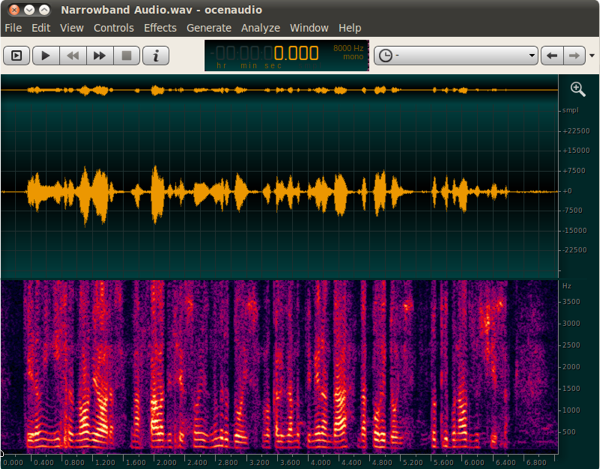
Image source: ocenaudio
Why Scientific Researchers Prefer Ocenaudio for Bioacoustic Work
Ocenaudio has earned a reputation as a top-tier tool for bioacoustics—the study of animal sounds. The Macaulay Library at the Cornell Lab of Ornithology specifically recommends Ocenaudio for preparing sound files for eBird submissions. This endorsement is due to the software's high-fidelity spectral analysis and its adherence to scientific standards.
When preparing scientific-grade recordings, experts recommend the following protocol in Ocenaudio:
- The 3-Second Buffer: Maintain at least 3 seconds of ambient background noise before and after the target sound to provide context for researchers.
- The -3 dB Rule: Normalize your recordings to exactly -3 dB. This provides enough headroom to prevent clipping while ensuring the signal is loud enough for archival analysis.
- Spectrogram View: Use the 'D' key to toggle the spectrogram. This allows you to visually identify high-frequency noise or hidden insect sounds that might interfere with the primary recording.
Managing VST Plugins and Real-Time Effect Previews
For many users, the ability to use third-party plugins is a deal-breaker. Ocenaudio offers strong support for VST2 (Virtual Studio Technology) and AU (Audio Units on Mac). One area where it stands out compared to older versions of Audacity is its real-time preview capability. When you open an effect, you can play the audio and tweak the sliders live, hearing the changes instantly before you commit them to the file.
"The real-time preview in Ocenaudio is a significant advancement for free editors. It allows for a level of precision in EQ and compression that usually requires a paid DAW."
However, there is a critical technical limitation to keep in mind: Ocenaudio does not support VST3 . As of 2026, many modern plugin suites are moving exclusively to the VST3 format. If your favorite plugin only comes in VST3, it will not appear in Ocenaudio's menu. Users should ensure they install the VST2 versions of their plugins to maintain compatibility.
Ocenaudio vs Audacity: Selecting the Right Tool for Your Needs
Choosing between Ocenaudio and Audacity depends entirely on your specific project requirements. While Audacity is the industry standard for free multi-track recording, Ocenaudio is often the better choice for single-file editing and rapid processing.
| Feature | Ocenaudio | Audacity |
|---|---|---|
| User Interface | Modern, Minimalist | Traditional, Complex |
| Multi-track Support | No (Single track only) | Yes (Unlimited tracks) |
| Processing | Background (Non-blocking) | Foreground (Blocks UI) |
| Plugin Support | VST2, AU | VST2, VST3, AU, LV2 |
| Spectral Analysis | Excellent (Real-time) | Good (Static) |
- Choose Ocenaudio if...
- You are editing podcasts, cleaning up voice-overs, or performing scientific analysis on single files where speed and UI responsiveness are your top priorities.
- Choose Audacity if...
- You need to record a full band, mix multiple layers of music, or require advanced VST3 plugin support.
Advanced Techniques for Custom Keyboard Shortcuts and Signal Generation
To truly unlock the potential of Ocenaudio, you should move beyond the mouse and master its customization options. Power users can map keyboard shortcuts not just to standard menu items, but to specific third-party plugins. This allows you to launch your favorite noise-reduction tool or compressor with a single keystroke.
Additionally, Ocenaudio includes a sophisticated Signal Generator . This tool is exceptionally strong for testing audio equipment or creating sound design elements. You can generate:
- Tones: Sine, Square, and Triangle waves at specific frequencies.
- Noise: White, Pink, and Brown noise for masking or testing.
- DTMF: Dual-tone multi-frequency signaling (telephone keypad sounds).
Mapping these to shortcuts like
Shift+G
can significantly speed up technical workflows for sound engineers.
Resolving Common Technical Issues and Plugin Conflicts
Even the most stable software can encounter hiccups. Here are the most frequent issues reported by the Ocenaudio community and how to fix them:
My VST Plugin isn't showing up in the menu. What's wrong?
First, verify that the plugin is a VST2 version (.dll on Windows, .vst on Mac). Ocenaudio will not recognize VST3 files (.vst3). Second, go to Preferences > Plugins and ensure the path to your VST folder is correctly listed. You may need to click "Rescan Plugins" to force the software to find new additions.
The software interface is in the wrong language. How do I change it?
Because the developers are based in Brazil, the software sometimes defaults to Portuguese or a different localized version based on your OS settings. Go to the Preferences menu (usually the last item in the first or second menu) and look for the "Language" or "Idioma" dropdown to switch back to English.
Why is my file too large to upload to eBird or other sites?
Ocenaudio saves in high-fidelity formats by default. If your file exceeds the 250 MB limit common for archival tools, check your sample rate. Converting a 96kHz file to 48kHz or 44.1kHz in the Edit > Convert Sample Type menu will significantly reduce file size without a noticeable loss in vocal quality.
The Bottom Line
Ocenaudio remains a top-rated choice for users who need a fast, reliable, and visually modern audio editor. While it may not replace a full DAW for music production, its specialized features make it a standout option for specific niches.
- Speed is the priority: The background processing architecture ensures you never wait for the software to catch up.
- Multi-selection is a game-changer: Editing out mistakes or applying bulk effects is faster here than in almost any other free tool.
- Scientific precision: Its spectrogram and normalization tools meet the high standards of institutions like the Macaulay Library.
- Cross-platform native: Whether on Apple Silicon or a Linux distro, the performance is consistently high.
- Plugin limitations: Remember that VST3 is not supported, so stick to VST2 or AU plugins.
- Destructive editing: Always work on a copy of your original audio to prevent accidental data loss.
For your next project, download the latest version and try mapping your most-used effects to custom shortcuts to see just how much time you can save.
Frequently Asked Questions
Is Ocenaudio really free to use for commercial projects?
Yes, Ocenaudio is completely free to download and use, even for commercial purposes like professional podcasting or voice-over work. There are no hidden subscriptions or "pro" versions. The software is supported by the LINSE research group as part of their commitment to providing accessible audio tools.
Can I use Ocenaudio to record multiple microphones at once?
No, Ocenaudio is a single-track editor. While you can record from a single input (or a stereo pair), it does not support multi-track recording where different microphones are assigned to different tracks. For multi-mic setups, Audacity or a DAW like Reaper would be a more appropriate choice.
Does Ocenaudio support MP3 and WAV formats?
Yes, Ocenaudio supports a wide variety of common audio formats, including MP3, WAV, FLAC, OGG, and M4A. It uses the Ocen Framework to ensure that encoding and decoding are handled efficiently, maintaining high audio quality during the conversion process.
Is there a mobile version of Ocenaudio for iOS or Android?
Currently, Ocenaudio is only available for desktop operating systems (Windows, macOS, and Linux). There is no official mobile version. For mobile editing, you would need to look into alternative apps specifically designed for mobile platforms.
How do I update Ocenaudio on a Linux system?
If you installed Ocenaudio via a .deb or .rpm package, you can update it by downloading the latest version from the official site and installing it over the old one. If you are using a repository-based version, your system's package manager (like
apt
or
dnf
) will handle the updates automatically when the maintainers push a new version.